I continue learning and working with AI. Claude AI is my current favorite because it contains compact features and functions that meet my needs in work and hobbies. For example, a minimalist and clear interface, fast query execution, and the generation of simple and understandable graphs and diagrams. It's like having everything in one place. On the downside, I see that it's not as creative as ChatGPT. I can't generate beautiful images there like in ChatGPT, and I can't change backgrounds and the graphics are generally better. I also prefer the text in ChatGPT. But for basic work, UX/UI, especially the code generation, is quite good.
I prefer to invent and think for myself anyway, and I use AI as an assistant. In this case, what I want to share now is that I drew a user flow chart by hand. I always start with paper. It's a kind of brainstorming. Put all your ideas down on paper and then find a beautiful, concise solution. Our brains are connected to motor skills, and by writing everything down on paper, you get the opportunity to force your brain to work more productively.
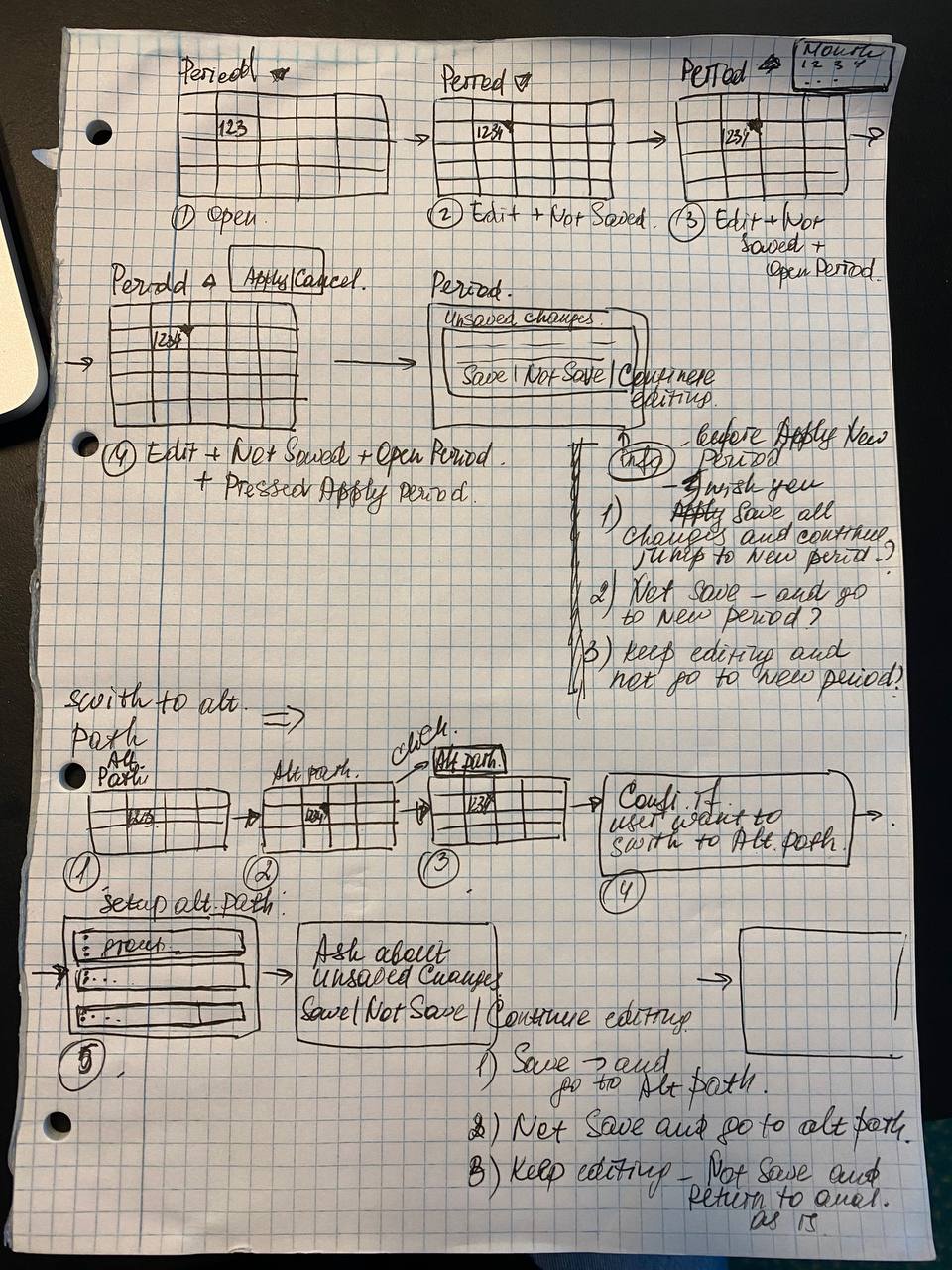
But now we have AI :) And the final ideas can be "easily" transferred to a digital version. I asked Claude AI to describe the flow and create diagrams for me as drawings. A sort of final draft for explaining to the developers.
This is what I ended up with.
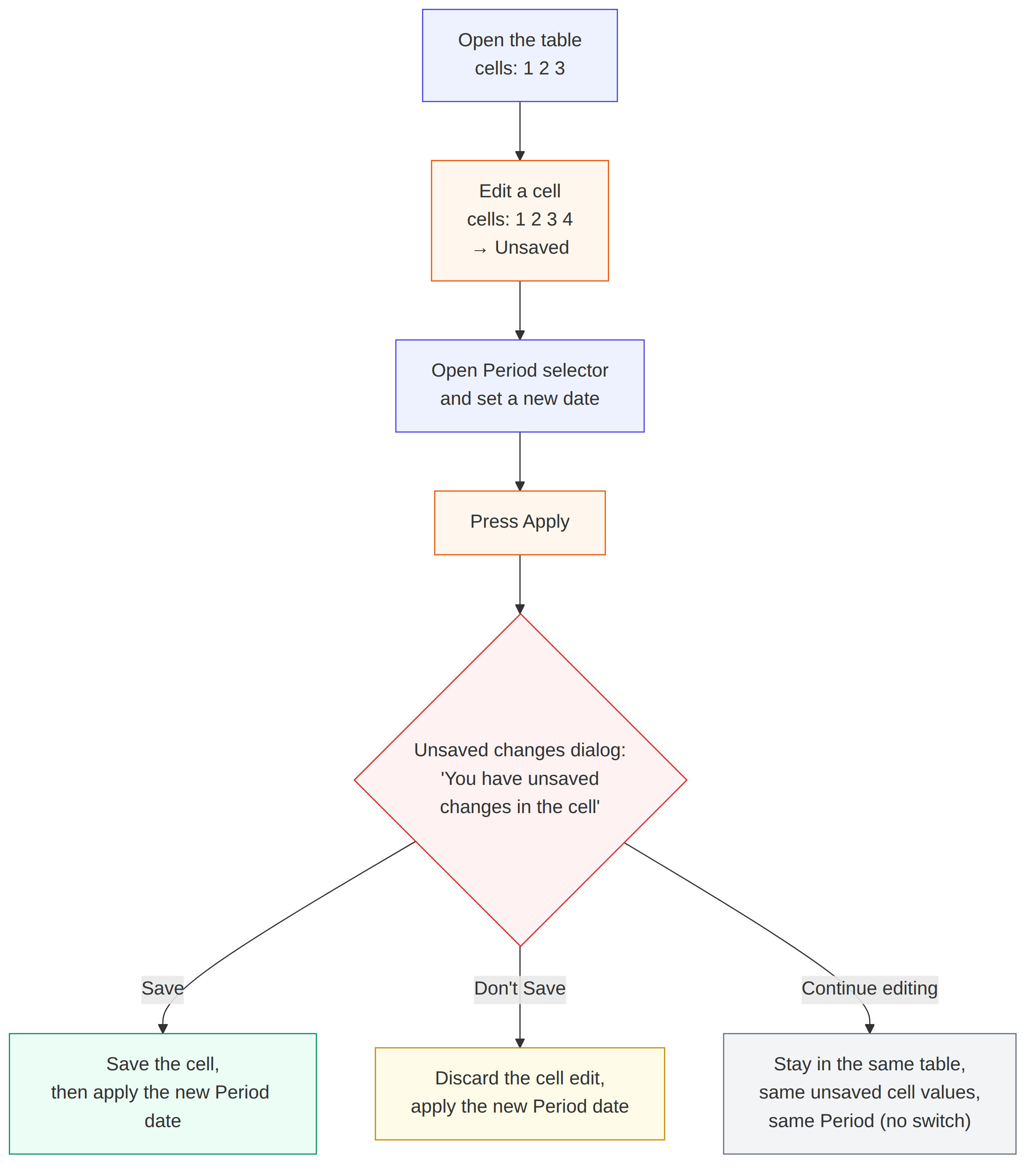
1) Flow 1 — switching Period with an unsaved cell
The user opens a table where the cells show values 1, 2, 3. They edit one cell, changing the values to 1, 2, 3, 4, but don't save it. While the cell is still unsaved, the user opens the Period selector, sets a new date, and clicks Apply.
At that point the system detects the unsaved cell and shows a dialog: "You have unsaved changes in the cell," with three options:
Save — saves the cell, then applies the new Period date.
Don't Save — discards the cell edit, and still applies the new Period date.
Continue Editing — cancels the request to apply the new Period. Nothing gets saved; the system just leaves the cell as it was, with the same unsaved values (1, 2, 3, 4), and the Period stays unchanged.
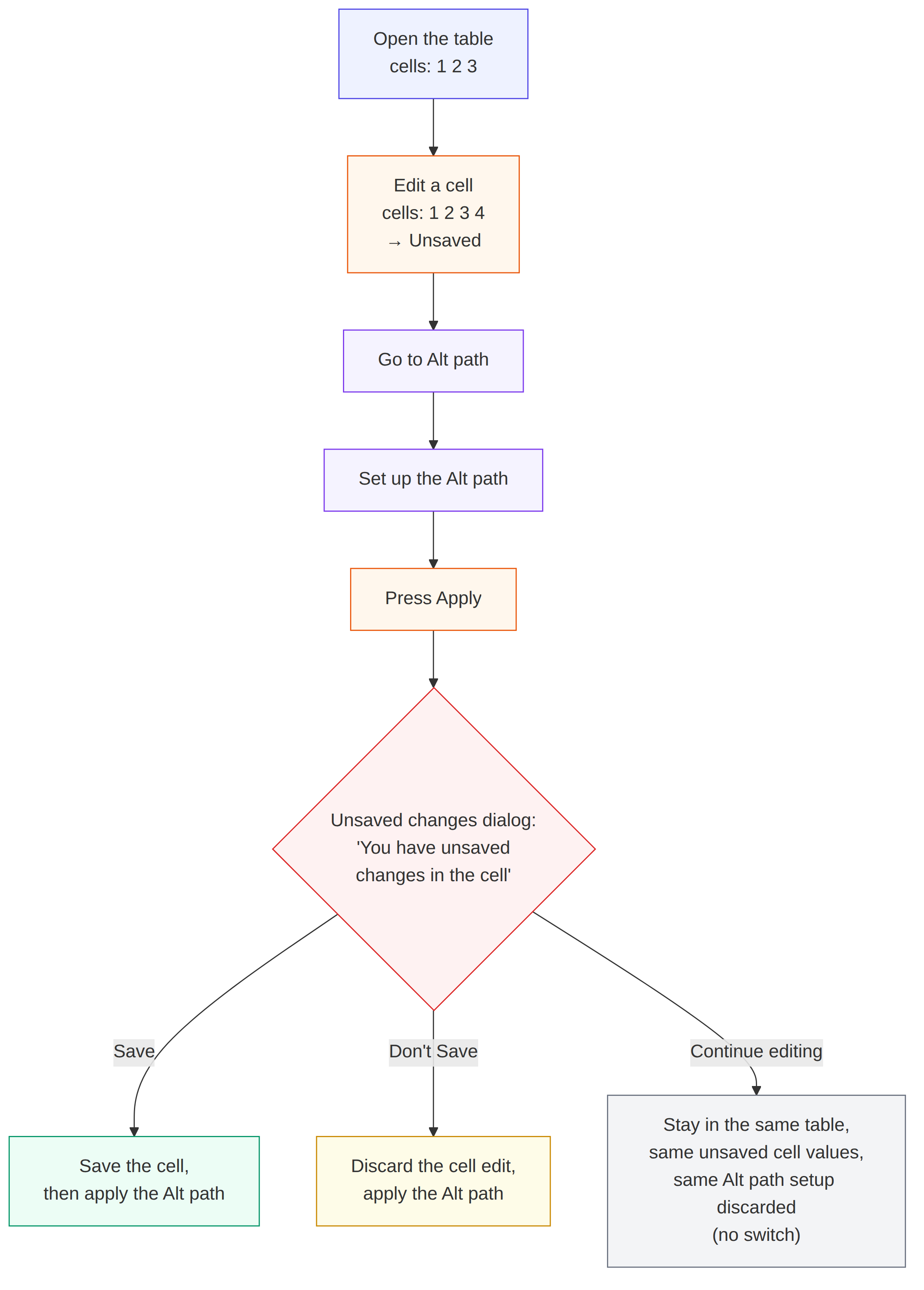
2) Flow 2 — switching to the Alt path with an unsaved cell
Same starting point: the user opens the table, edits a cell (1, 2, 3 → 1, 2, 3, 4), and it's unsaved. The user goes to the Alt path and sets it up. When they click Apply for the Alt path, the system again detects the unsaved cell and shows the same dialog: "You have unsaved changes in the cell," with the same three options — Save (saves the cell, then applies the Alt path setup), Don't Save (discards the cell edit, still applies the Alt path), or Continue Editing (cancels the Apply action entirely — nothing is saved, the cell stays as it was, and the Alt path setup is discarded).
There were a few clarifications, because Claude decided to create the flow from his own perspective. But overall, I'm happy with the result. I'm skeptical of the idea that AI is used to save time, but I've never been one to do work twice, so automatically rewriting a draft into a final copy is perfectly acceptable to me. :)
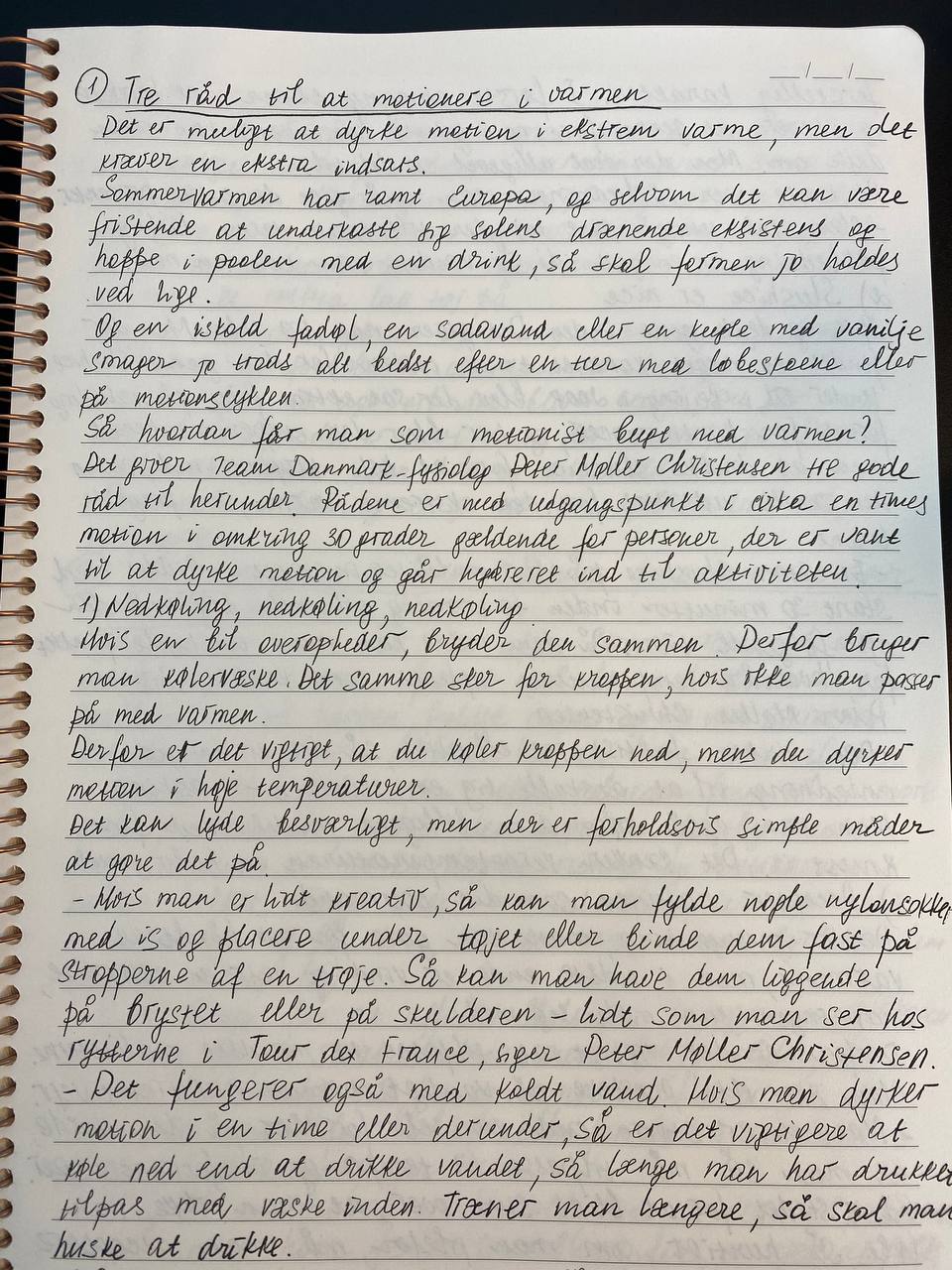
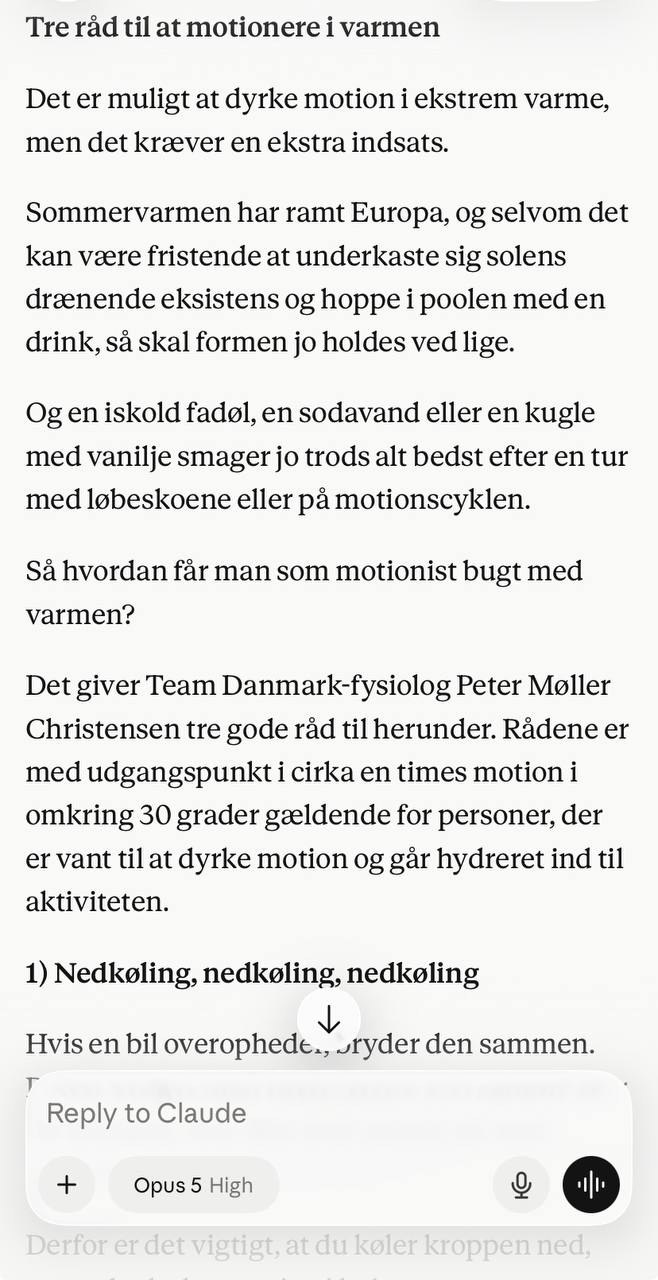
By the way, I did the same with my Danish writing assignments.
Of course, we all must be mindful of protecting user rights and privacy when using AI. So please be vigilant when trying to make your life easier. Best wishes to all.


