Back to all projects

FP&A Platform Case

8 years as the only designer of an enterprise planning platform

How I am bringing a budgeting and business intelligence product from a long-lived Java desktop client to the web, built two design systems, and kept the product coherent while everyone around me had an opinion about the UI.

Download case study as PDF
Role Sole product designer
Years 2019–2026
Team Java and web developers
Platforms Desktop, web, mobile
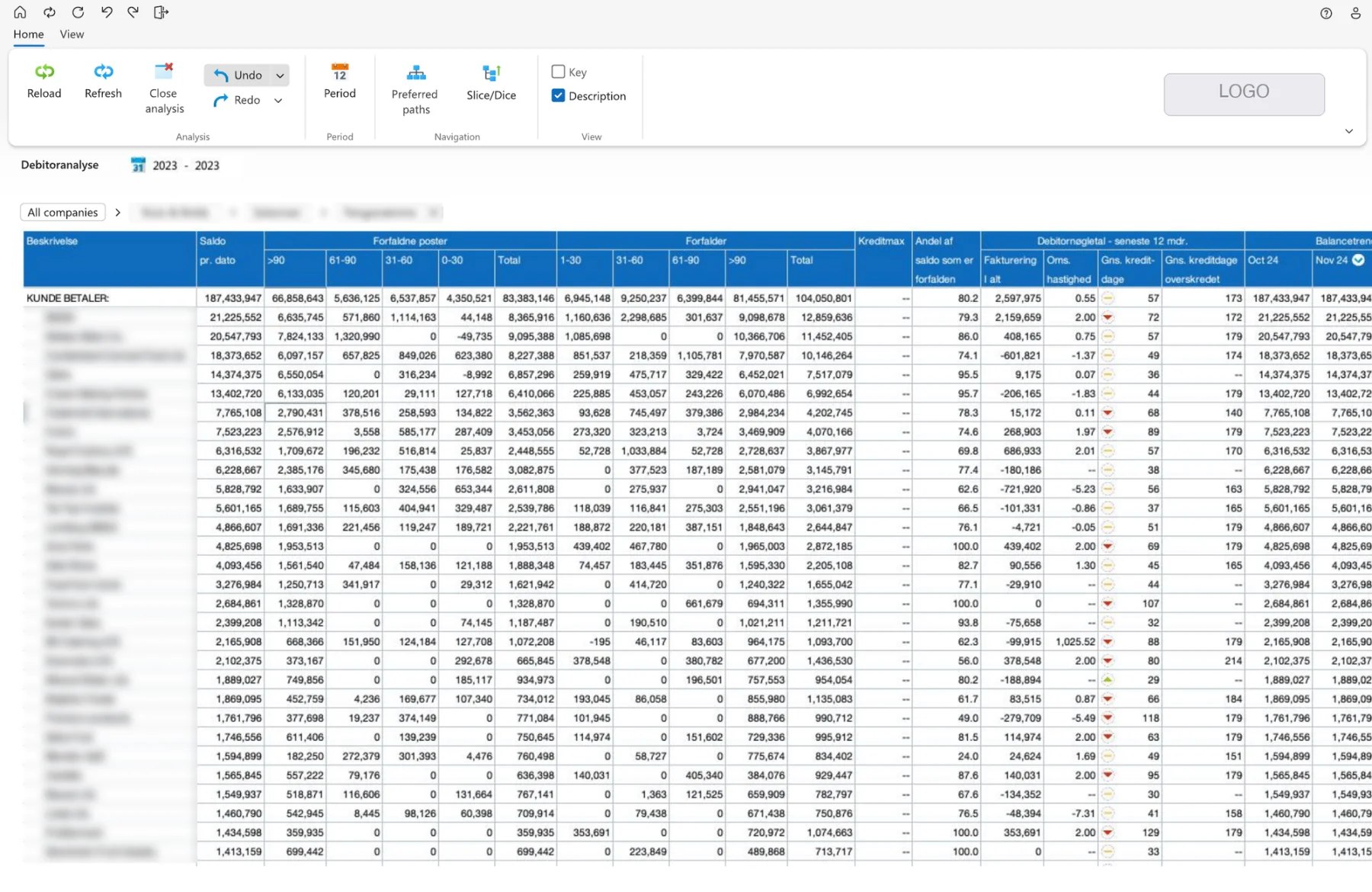
After: the web client with a compact ribbon, clear title and period, and a full-width financial grid
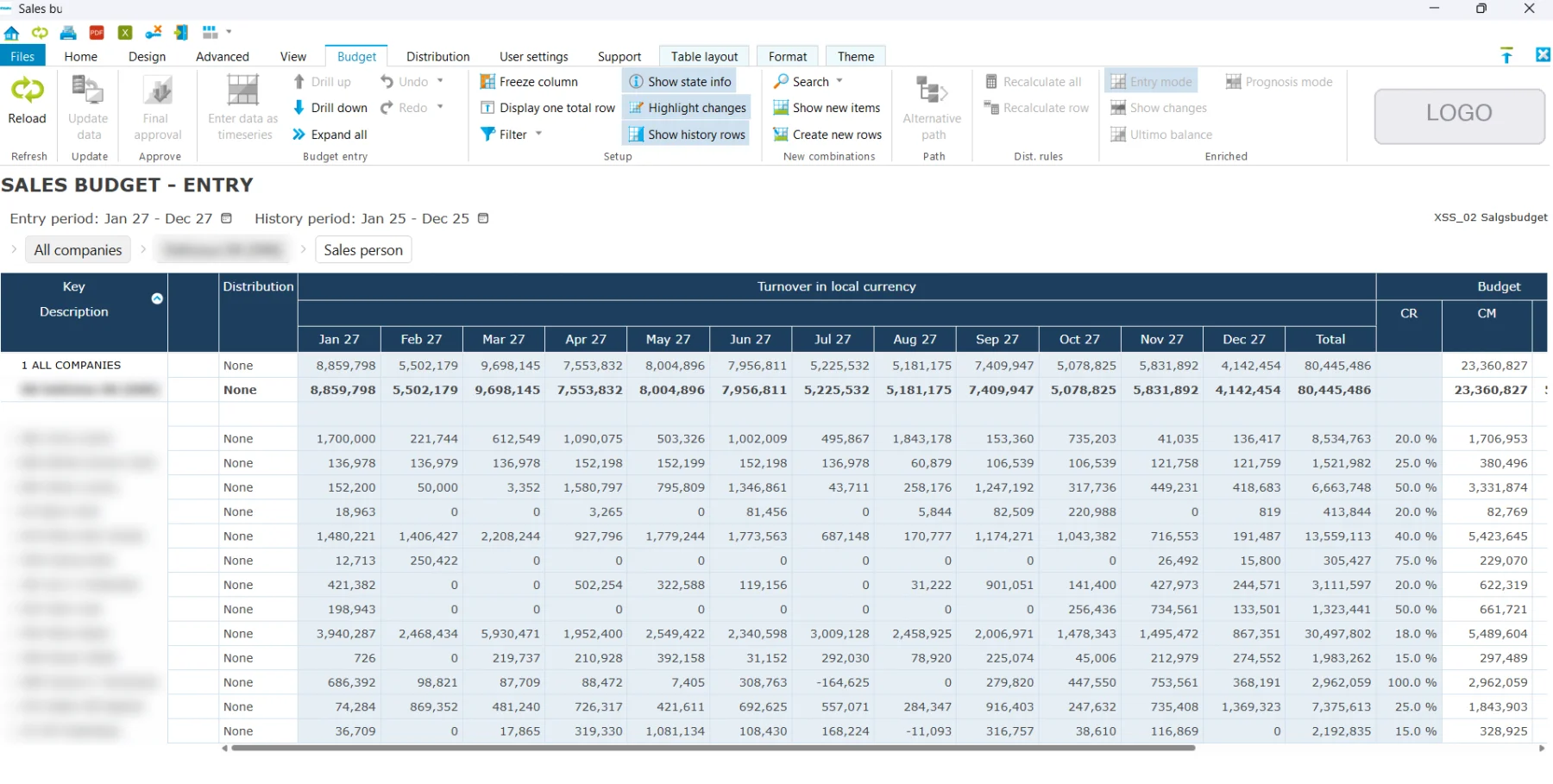
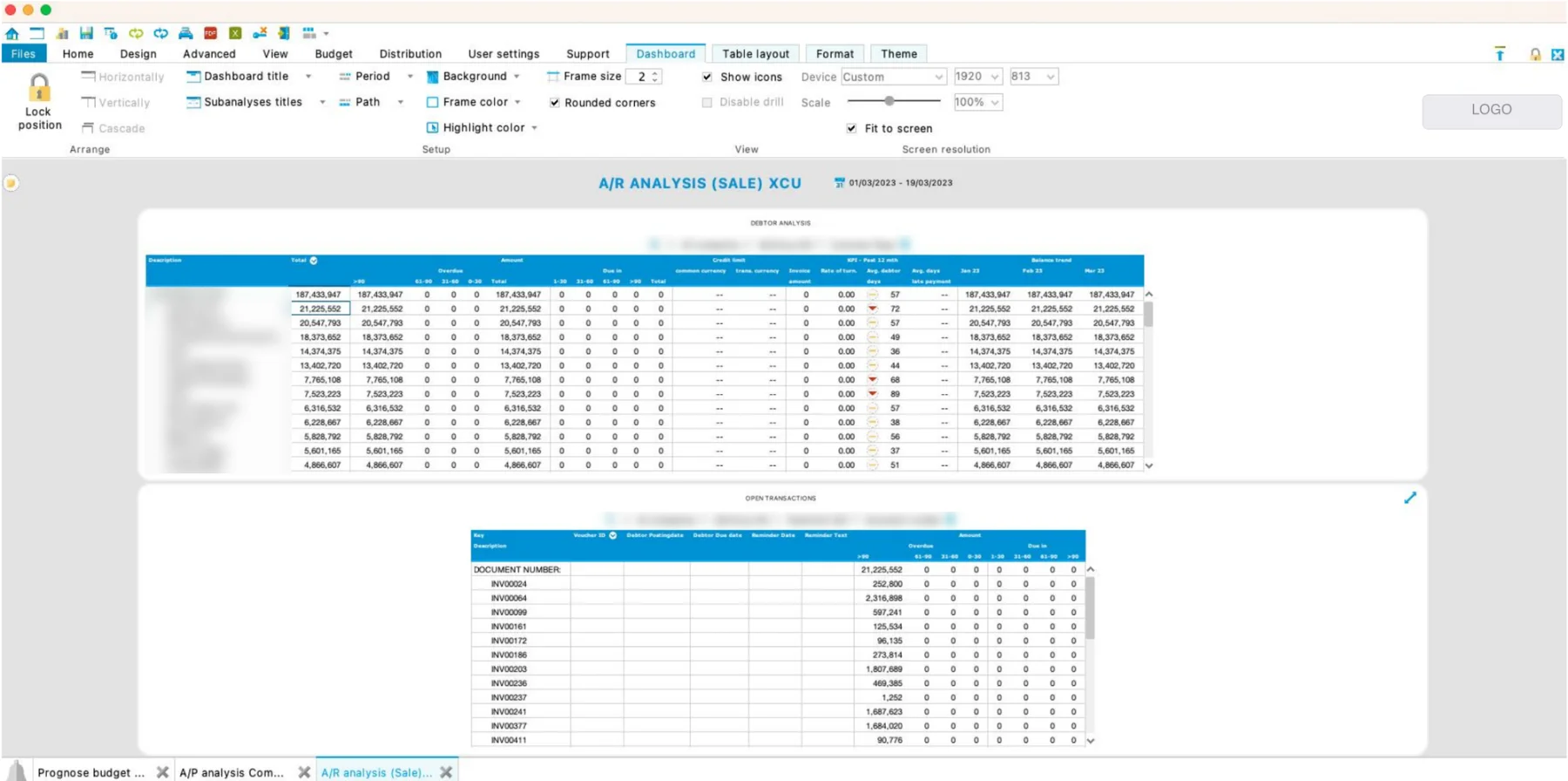
Before: the Java desktop client with a four-row ribbon and two dense tables
Java clientWeb
8 yrs

as the only designer, without a product manager or design lead

1,146

new product icons, each in a light and a dark variant

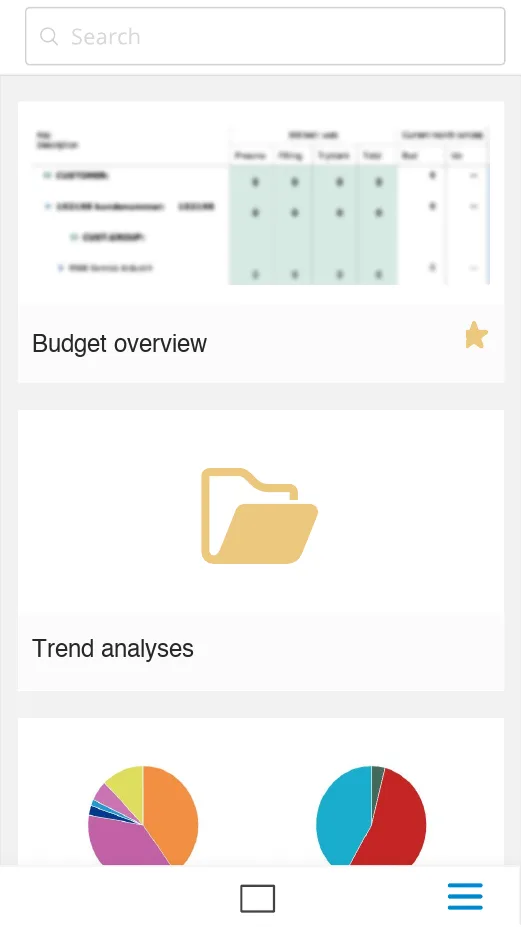
Mobile appMobile app home with analyses shown as cards
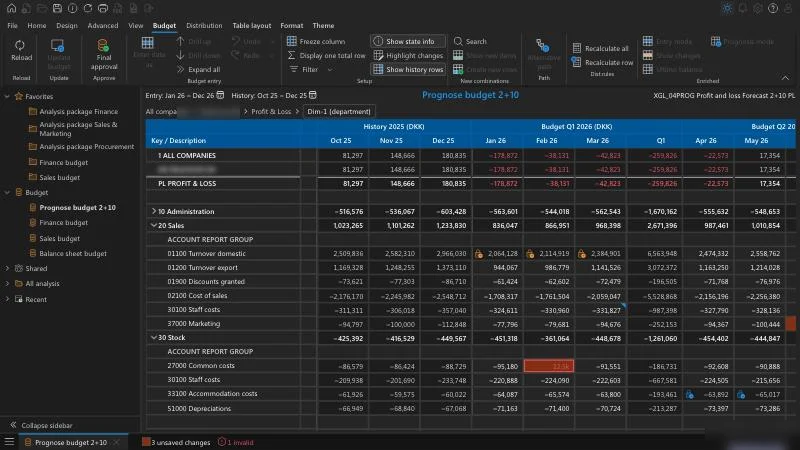
Dark themeWeb client in the new dark theme

Drag the handle or use the arrow keys to compare. Client names and data are blurred.

The problem

A product with more than 35 years of history and a Java desktop client at its core, a web client whose tables could barely be used, three clients that each worked differently, and components that looked and behaved differently on almost every screen.

My role

The only designer for 8 years: research, information architecture, UI, design systems, UI writing, specs and design QA.

What I did

Redesigned the web client, designed the first mobile app, pushed for a real grid library, wrote the rules the team builds with, tested with users.

The result

One consistent product family on Fluent UI 2, and a design process the whole company follows.

A desktop product on its way to the web

The product is an enterprise financial planning and analysis platform for mid-sized companies: budgeting, forecasting, consolidation, analysis of actual figures, dashboards and scheduled reports in one application.

The product has been developed for more than 35 years. Its core is a Java desktop client that customers still use every day. The company is bringing it to the web: the web client has to offer the same functionality in the browser and on a tablet, while a separate mobile app covers phones.

When I started, the web client was barely usable. Its tables were rendered by the Java back end, so people could look at figures but hardly work with them. I proposed replacing them with a JavaScript grid library, listed the functions it had to support (Excel-like editing, frozen columns, keyboard navigation, copy and paste with Excel), and the developers chose and integrated one.

Who uses it

  • Controllers and analysts build analyses and forecasts. Power users of Excel.
  • Budget owners type their figures into large grids once or twice a year.
  • Management reads KPIs and drills down when a number looks wrong.
  • Administrators configure dimensions, models, permissions and jobs.

One designer, many opinions

I worked directly with the Java and web development teams. Requirements and feedback came from everyone who touched the product, and they often contradicted each other. Many requests arrived as finished solutions ("add a button here") instead of problems.

Business managersImplementation consultantsSalesMarketingSupportSenior Java developersJunior developersCustomers, through consultants

My job became turning those opinions into decisions the team could agree on and build. These methods worked:

Evidence over opinion

Usability tests with real users moved the talk from "I think" to "five of five people missed this".

Options with trade-offs

For contested topics I showed two or three variants with pros, cons and development cost.

Principles that settle debates

"Familiarity over novelty" and "data first" gave everyone the same yardstick.

Specs developers can build

Problem, expected behaviour, numbered acceptance criteria and implementation notes.

A shared vocabulary

A design system, a tooltip style guide and a shortcut specification ended repeat arguments.

Compromise, written down

When the ideal was too expensive, the smallest fix that solved the user's problem, and a note of what was left.

8 years, 6 stages

  1. 2019

    Audit of the legacy product

    Compared the desktop, web and mobile clients side by side, and studied how Excel, Google Sheets, Power BI and Tableau solve the same tasks. A market analysis of nine competitors followed in 2021.

  2. 2019–2020

    First mobile app and first design system

    There was no mobile version at all. Designed the app from scratch: navigation, biometric sign-in, a touch period picker, drill-down by dimension, analyses as cards. A Figma component library, and the first components added to Storybook for developers.

  3. 2022

    First usability testing

    Moderated sessions on drill-down and period selection across the Java, web and mobile clients.

  4. 2022–2023

    Information architecture for the web

    One map of more than 100 web screens. Menu, quick menu and ribbon compared; the ribbon won because it matches Microsoft 365.

  5. 2024–2025

    Web 2.0 on Fluent UI 2

    The grid library in place, then home, grid, budget entry, setup tables, job queue, distribution and charts redesigned module by module. A written design process for the whole company.

  6. 2025–2026

    Systematising quality

    Expert reviews of new modules, usability testing by user role, a UI-text style guide, an icon audit, and a design system written for AI-assisted development.

Who we design for

Personas came from interviews with colleagues who work with customers every day. They appear here as role archetypes, without names or photos.

The executive

Wants
Dashboards, KPIs and reports by email; drill-down on mobile.
Hates
Screens that need training before they make sense.

The sales and marketing user

Wants
A clean layout, ready dashboards, segments and filters.
Hates
Inconsistent screens and too much data at once.

The senior consultant

Wants
Speed with large datasets, keyboard shortcuts, patterns.
Hates
Features built without matching what customers do.

The support specialist

Wants
Clear messages, consistent behaviour, good documentation.
Hates
Errors that do not say what went wrong or where.

Competitive analysis

The market, 2021

I mapped nine budgeting products sold in the same market and compared them on eight criteria. They fell into three groups:

Excel add-ons

Built by consultancies on top of spreadsheets and a database. Budgeting stays in Excel, reporting moves to Power BI.

Tools with their own client

Made to automate the budget process, with forecasting, planning and reporting in one front end. Our product belongs here.

Large FP&A suites

BI, budgeting, forecasting and consolidation in one cloud product, often with AI or machine learning.

Cloud or serverDegree of standardisationPrice structureSpreadsheet or own clientConsolidationBI and reportingERP and BI integrationsAI and machine learning

The finding: every product promises the same thing, "automate the budget and get rid of spreadsheets". What separates them is cloud delivery and AI-assisted forecasting, and, for us, how it feels to use. That made a familiar, Microsoft 365-like interface a real argument, not decoration.

UX benchmark, 2022

Then I studied how six products people already use solve the same problems as ours, on desktop, tablet and phone: screenshots and screen recordings, official design guidelines and user reviews.

ProblemPower BIExcelTableauQlikTopdeskSales­forceWhat we took
Notifications, errors, progressFluent toasts for success, warning, error and progress, with texts that name the problem and the fix
Many reports open at onceAnalyses open as tabs inside the app, in a bottom bar, instead of new browser windows
Sign-in and two-factorOne sign-in card for all clients, with single sign-on handled by the server
Biometrics on mobileTouch ID and Face ID sign-in in the mobile app
Ribbon and sheets on a phoneNo shrunk ribbon on phones: a separate mobile app with its own navigation
Tablet, side by side with other appsTablets get the web client with touch-sized rows and controls
Undo and redoCtrl+Z and Ctrl+Y with the same meaning as in Microsoft 365

What they offer

For each product I collected the feature list, design guidelines, documentation and reviews, to see which features users expect from an analytics tool and which ones they complain about.

Tableau100
Topdesk52
Qlik43
Power BI25
Excel7
Salesforce Analytics7

Usability testing, twice

In 2022 I compared drill-down and period selection across three clients with five participants: consultants as expert users, sales staff as occasional users. In 2026 I ran goal-based scenarios for budget owners and administrators, with separate run sheets for executive, operations and marketing roles, measuring whether people finished each task, how long it took, where they made mistakes, and how easy each task felt to them.

Expert reviews before release

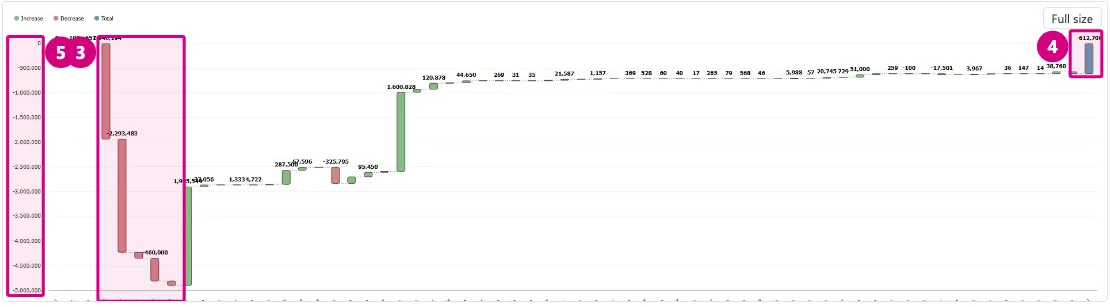
Before a new module goes to customers, I check it against a list of ten basic usability principles, give each a score from 0 to 4, and sort the problems from critical to minor. The review of the new waterfall chart found 12 problems. The most serious: the chart showed the opposite of the table next to it.

18of 40 · first build of the waterfall chart
Shows what is happening2
Speaks the user's language1
Easy to undo and exit3
Consistent2
Prevents mistakes1
Options visible2
Fast for experts2
Nothing extra2
Clear error messages1
Help where needed2

Before and after, screen by screen

Drag any comparison to see the old and the new version of the same screen. Click or tap a screenshot to see it full size.

Budget entry

Budget owners enter figures once or twice a year, many of them on the desktop client for years.

Before
  • A wide ribbon full of greyed-out buttons
  • No clear difference between totals, groups and accounts
After
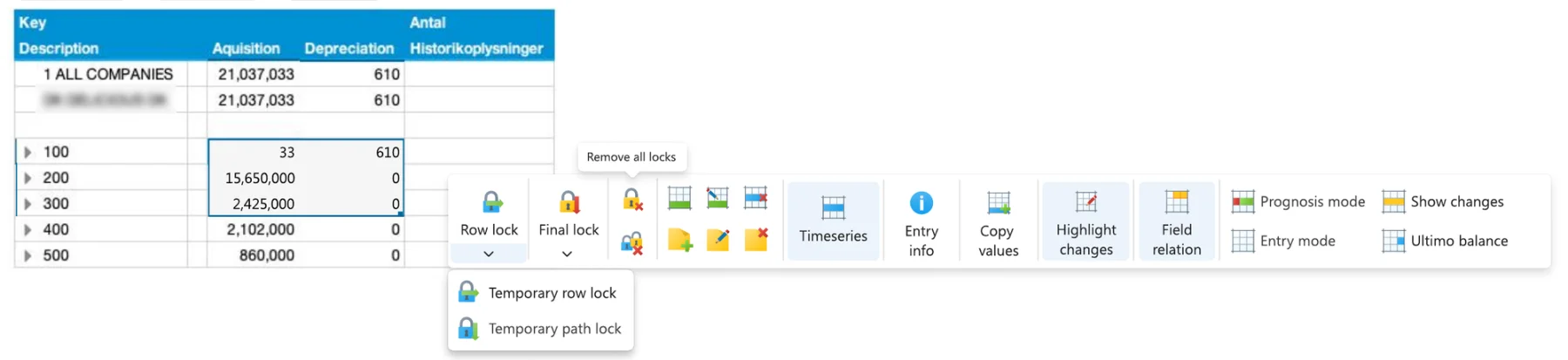
  • Same ribbon groups; the right-click quick bar rebuilt with clear groups, lock options and tooltips
  • Clear levels and visibly unavailable actions, in Fluent UI 2
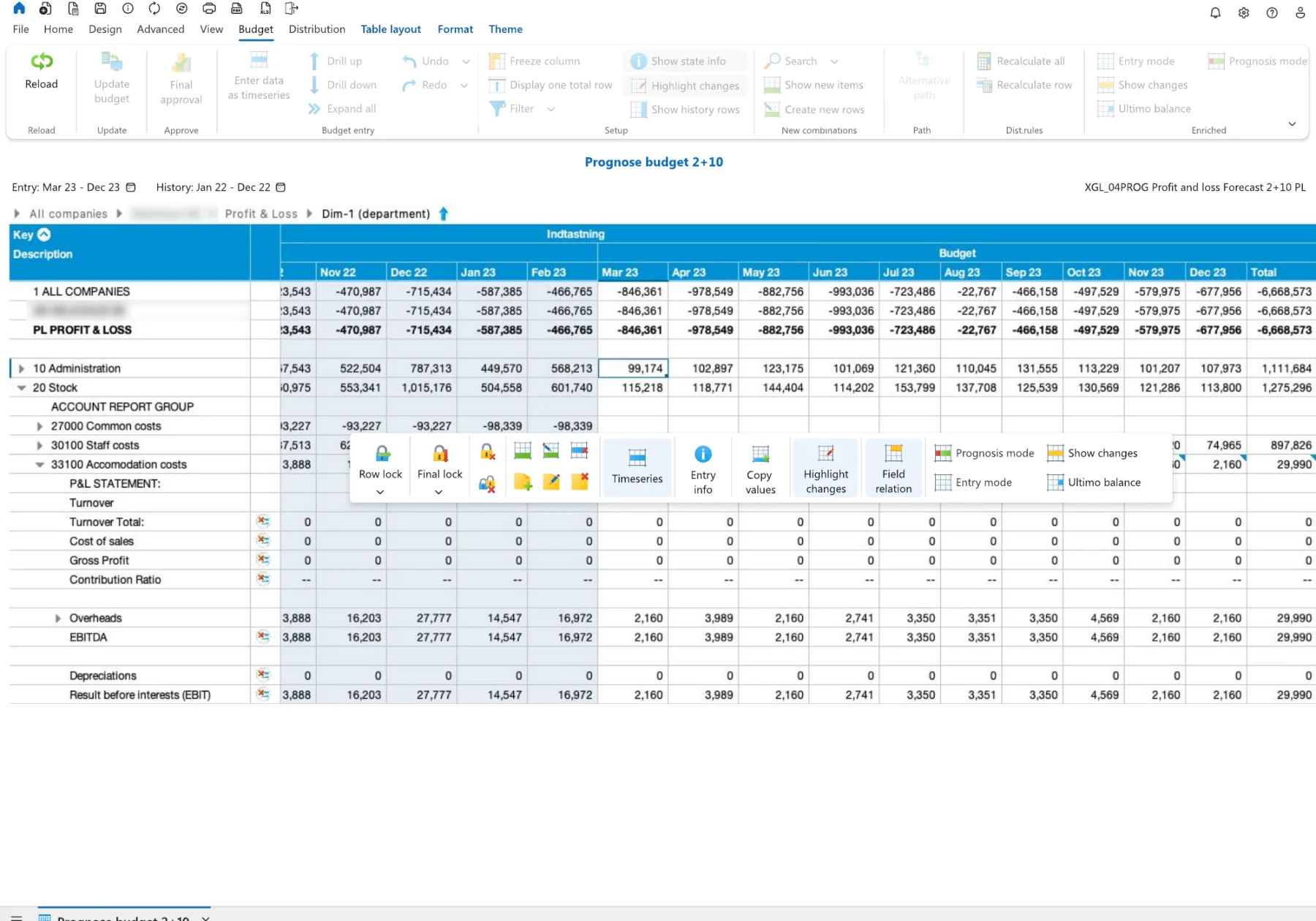
After: web budget entry with a quick bar of row actions next to the selected cell
Before: Java budget entry with a wide ribbon of mostly disabled buttons
BeforeAfter
Before · Right-click quick bar, Java clientOld right-click quick bar: small unlabeled lock and note icons and greyed-out mode buttons in one dense block
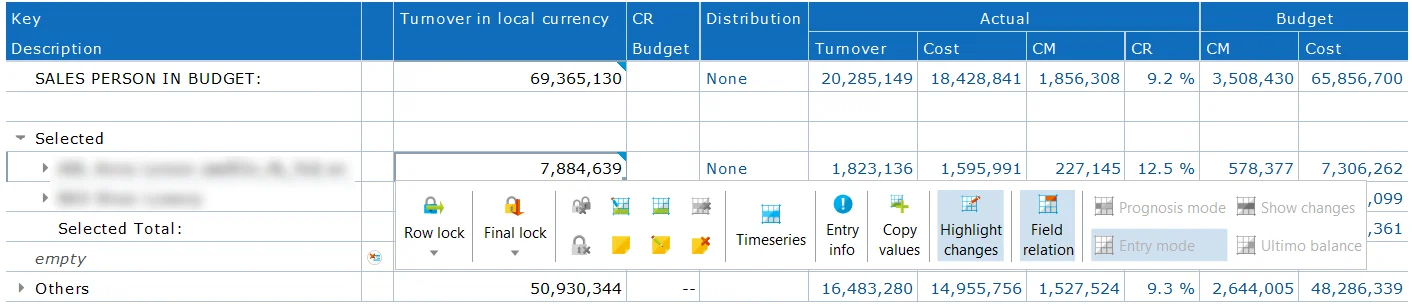
After · Right-click quick bar, webNew right-click quick bar: Row lock and Final lock with dropdowns for temporary row and path locks, tooltips such as Remove all locks, grouped actions and clear modes

Quick bar keptRow lock, final lock, time series and copy stay beside the cell, as on desktop.

Same names, same groupsTrained users find everything in its usual place.

Clear hierarchyTotals, groups and accounts read as levels.
Home and navigation

The first screen people see every day.

Before
  • No hover, selected, loading or empty states
  • A menu that could not collapse, and a long folder tree
After
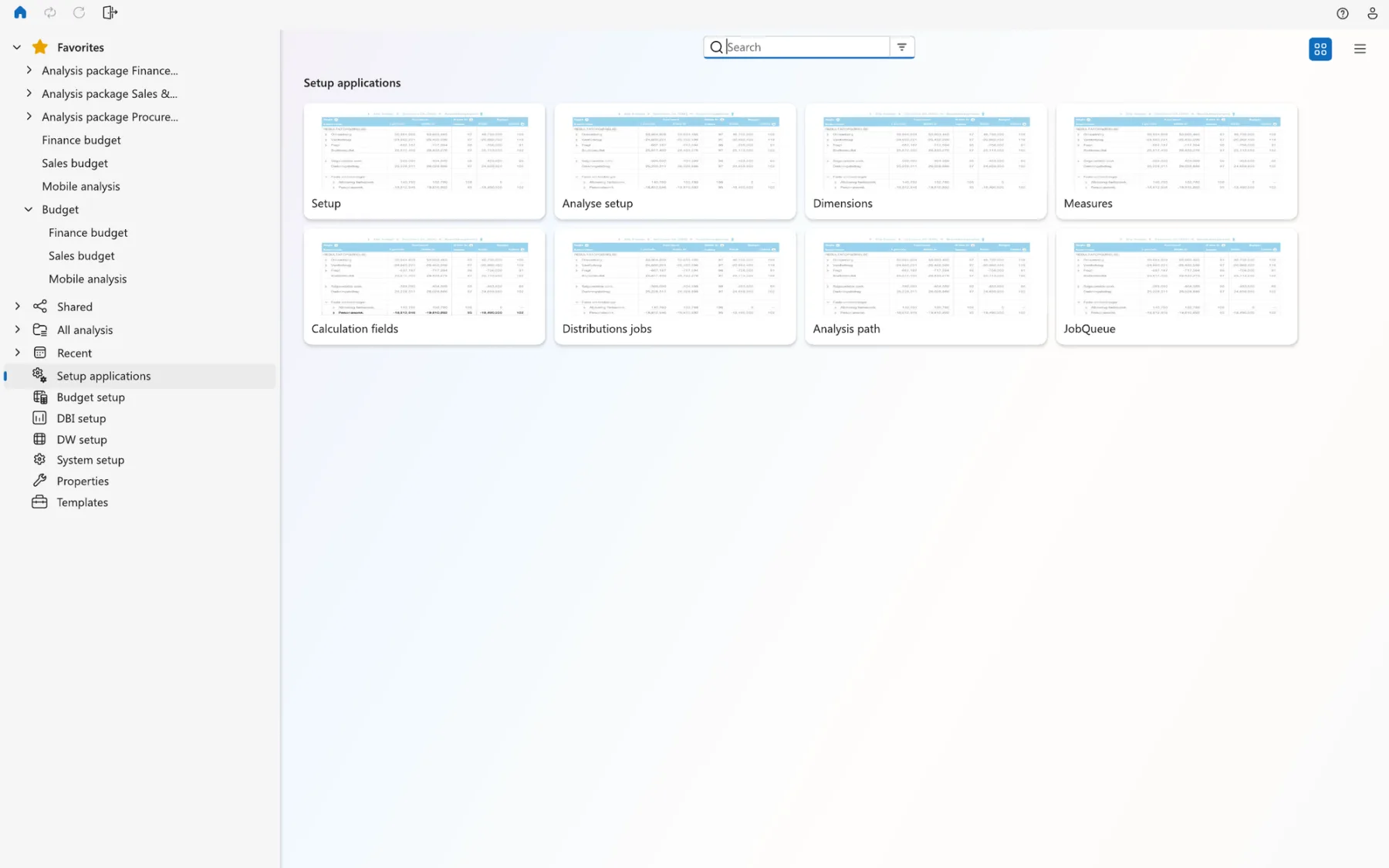
  • Favourites, shared, all and recent analyses in one sidebar
  • Search on top, setup applications as cards
  • A sidebar that collapses to give the grid full width
Before · Java clientOld applications desktop: a full ribbon, a long folder tree and small analysis thumbnails
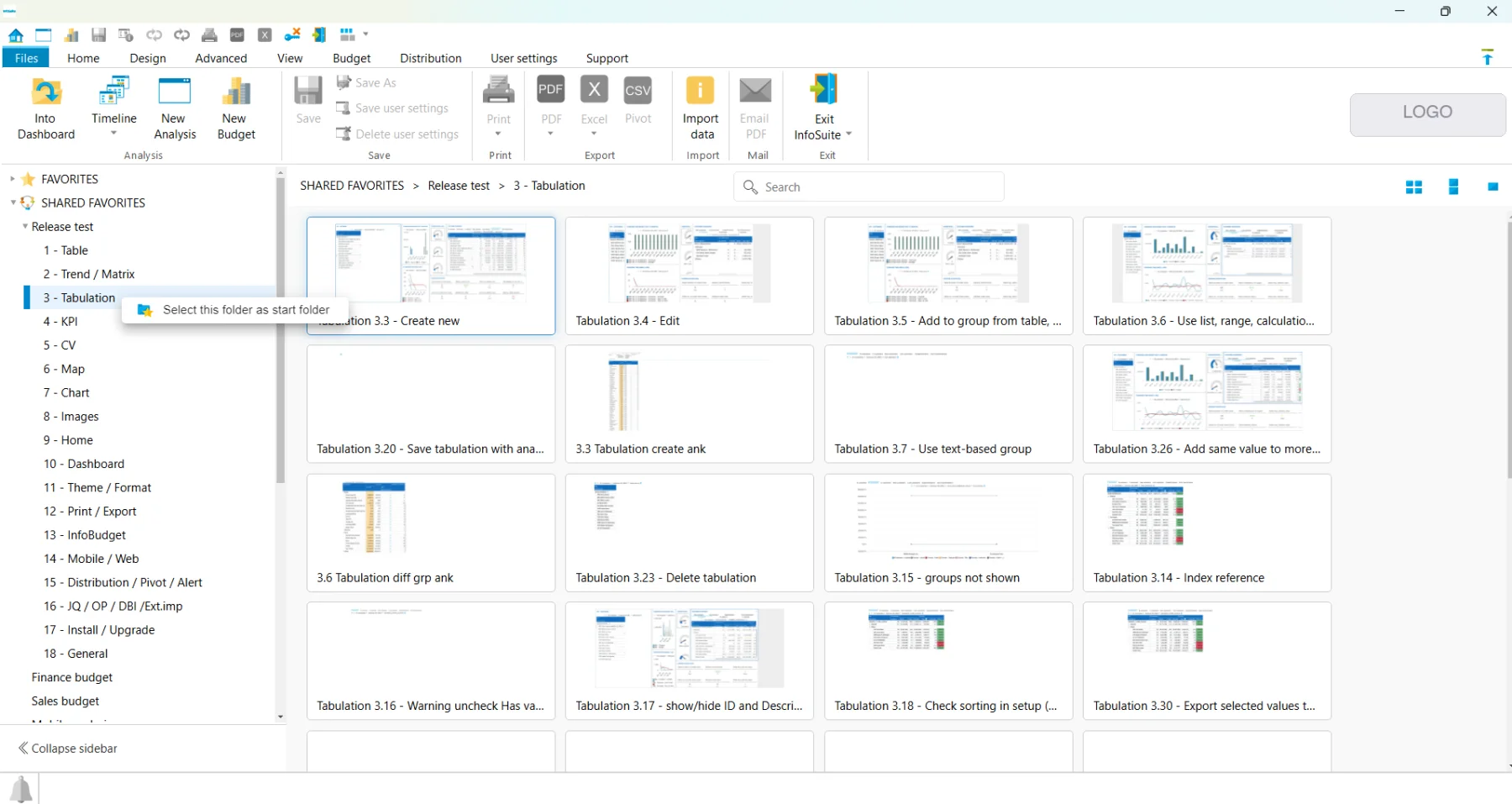
After · WebNew home with a sidebar, search and setup application cards

Feedback on every elementHover, focus, selected and loading states, where before there were none.

Recognition over recallEvery area is visible in the sidebar.

Collapsible sidebarNew: one click gives analysts the full width for the grid.

Sign-in

One screen, used by every user, every day.

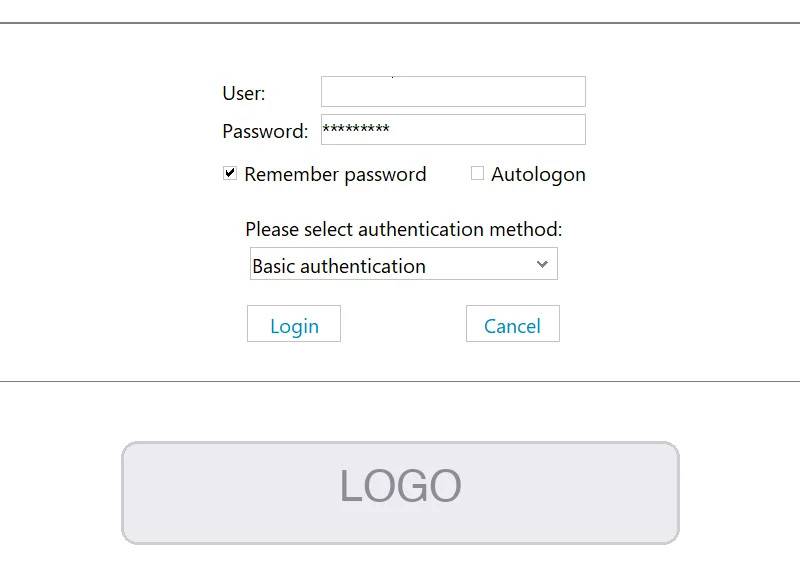
Before
  • Fields floating on an empty window
  • An authentication-method dropdown and two checkboxes
  • Login and Cancel with equal weight
After
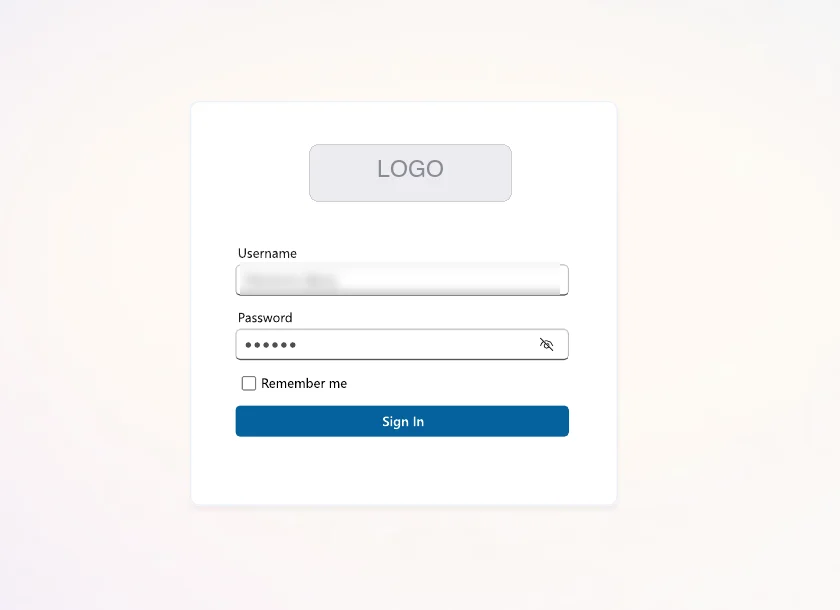
  • One card with labelled fields and a show-password toggle
  • One primary button
  • Single sign-on handled by the server
BeforeOld sign-in: plain fields, an authentication method dropdown, Login and Cancel with equal weight
AfterNew sign-in card with labelled fields, show-password toggle, Remember me and one Sign in button

One primary actionSign in is the only strong button.

Less to decideNo method dropdown or Autologon on the first screen.

Same look everywhereDesktop, web and mobile share one sign-in.

Moving through the data

Analysts move by path (company, salesperson, customer) or slice the data.

Before
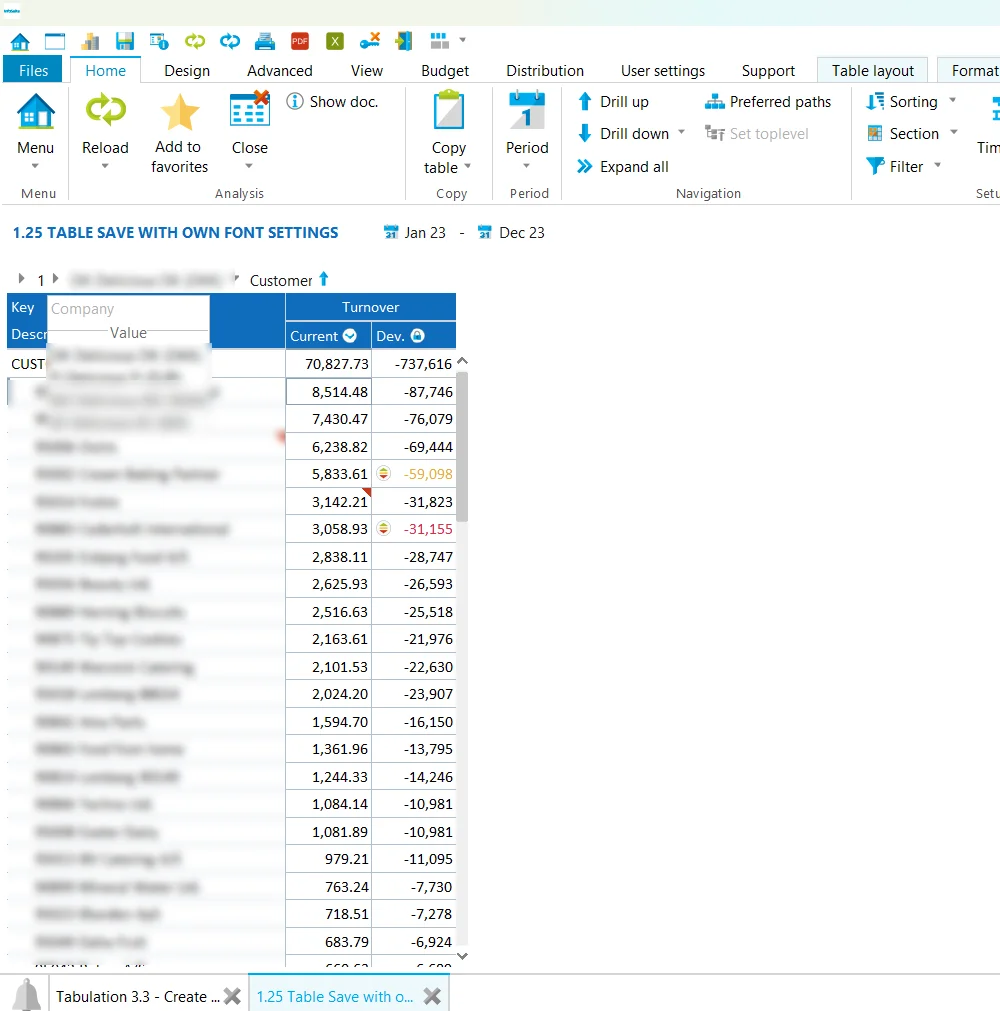
  • Path values as a bare list without search
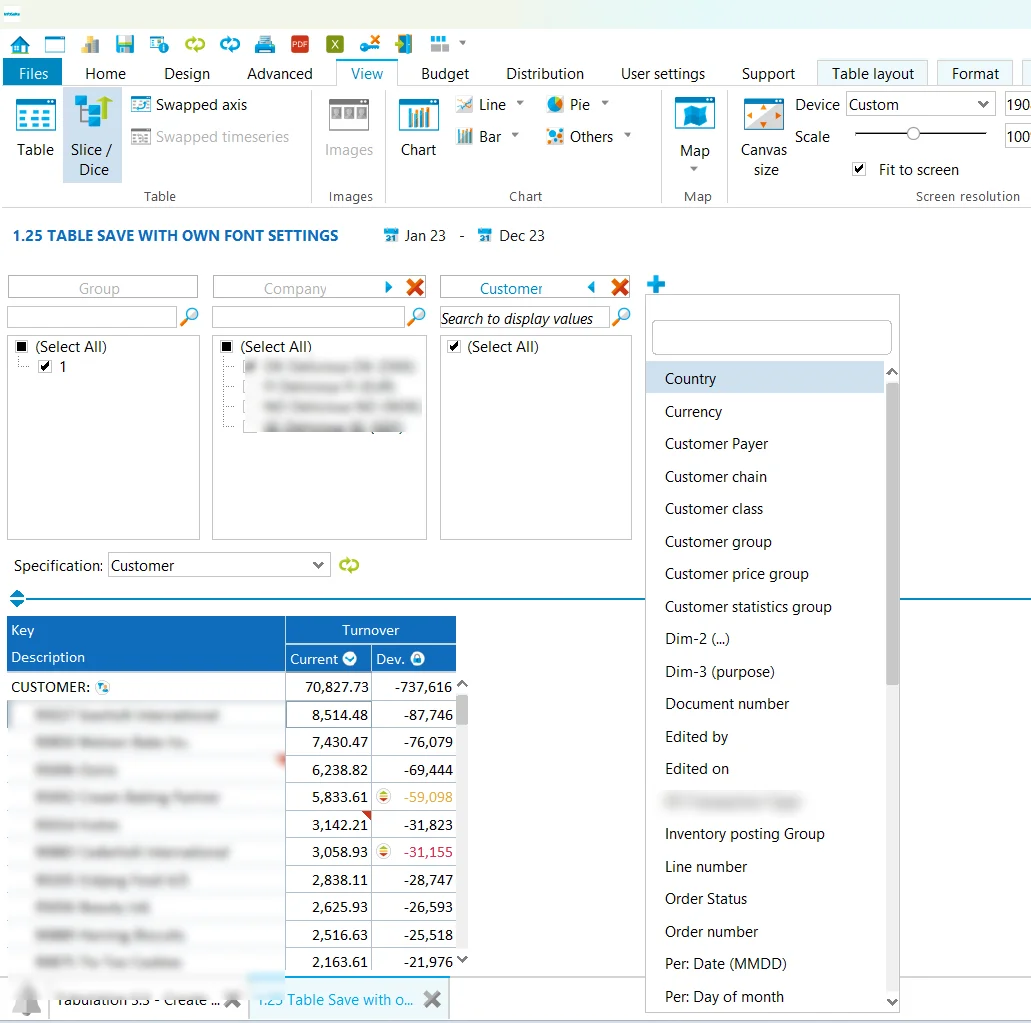
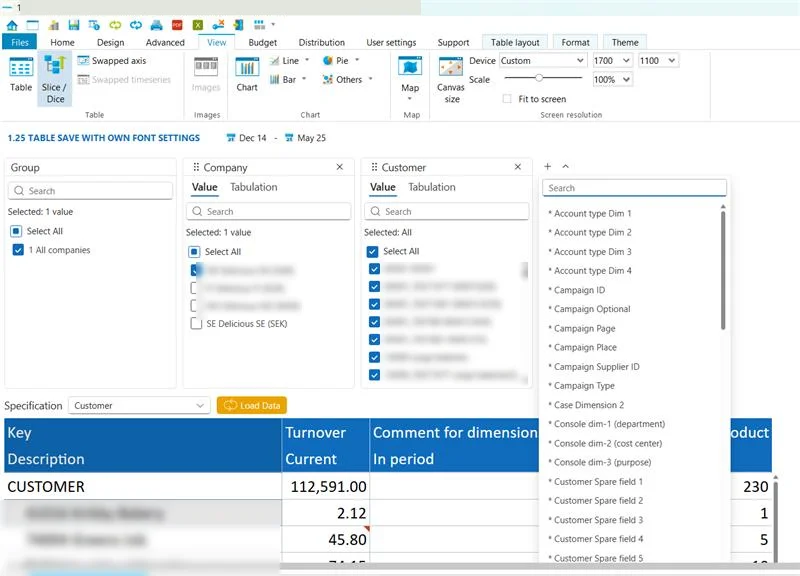
  • Slice/Dice as grey boxes with tiny icon buttons
After
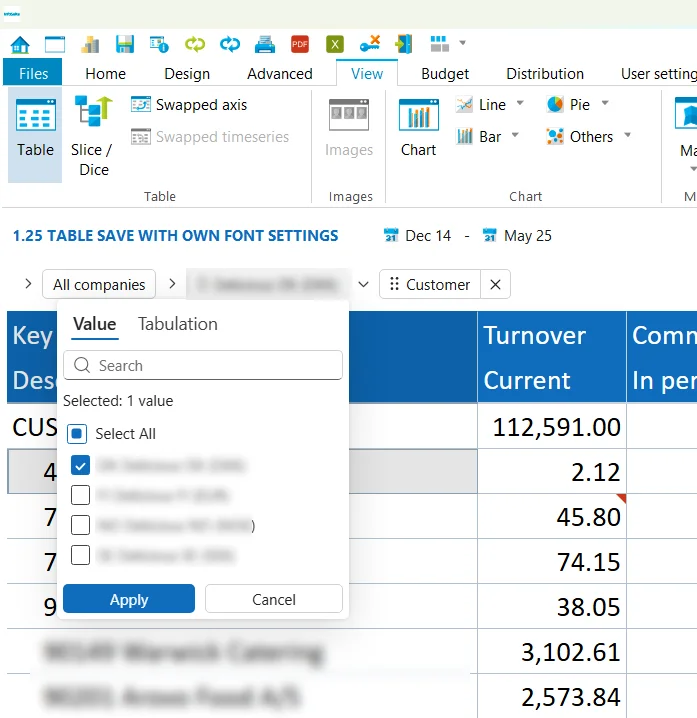
  • One picker for path, slice and filter
  • Search, Value and Tabulation tabs, selection count, Apply
Before · Path valueOld path: a plain dropdown of companies over the grid, no search
After · Path valueNew path picker with Value and Tabulation tabs, search, selected count and Apply
Before · Slice and diceOld Slice/Dice: grey boxes with small arrow and close icons and a separate list of dimensions
After · Slice and diceNew Slice/Dice: cards per dimension with search, Value and Tabulation tabs, and an add button with a searchable list

One picker everywherePath, slice and filter share search, tabs and selection.

Search firstLong lists of customers are filtered, not scrolled.

Clear stateSelected count and Select all with a partial state.

Setup tables for administrators

Administrators manage dimensions, measures, jobs and imports here.

Before
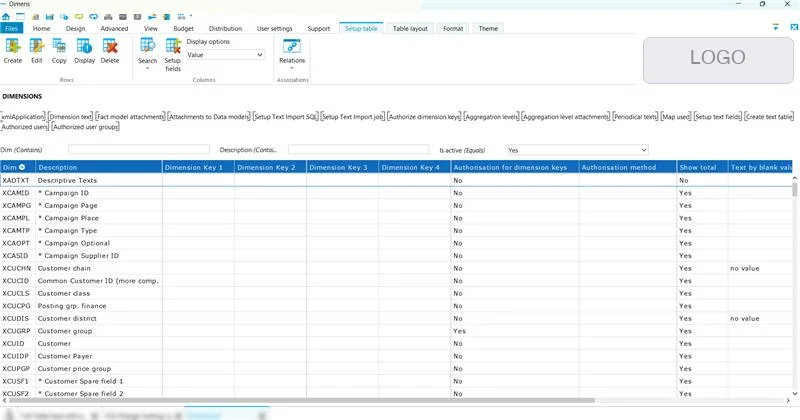
  • Related tables as a row of bracketed links
  • A right-click menu of more than twenty items
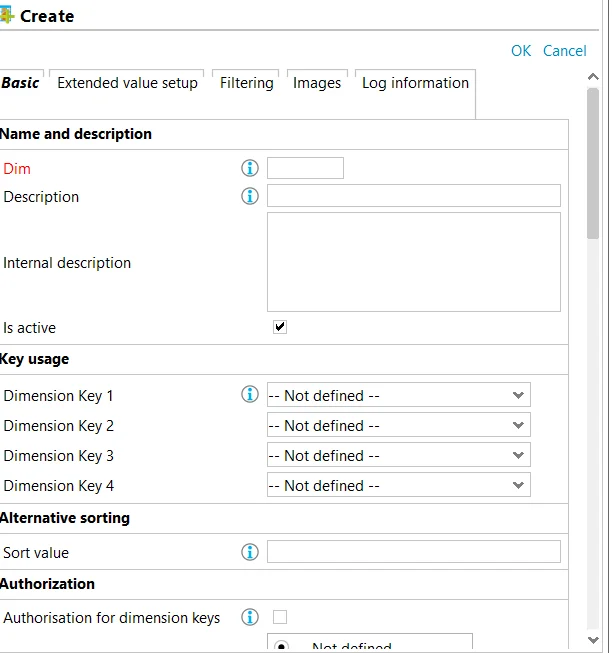
  • OK and Cancel as small links, five tabs
After
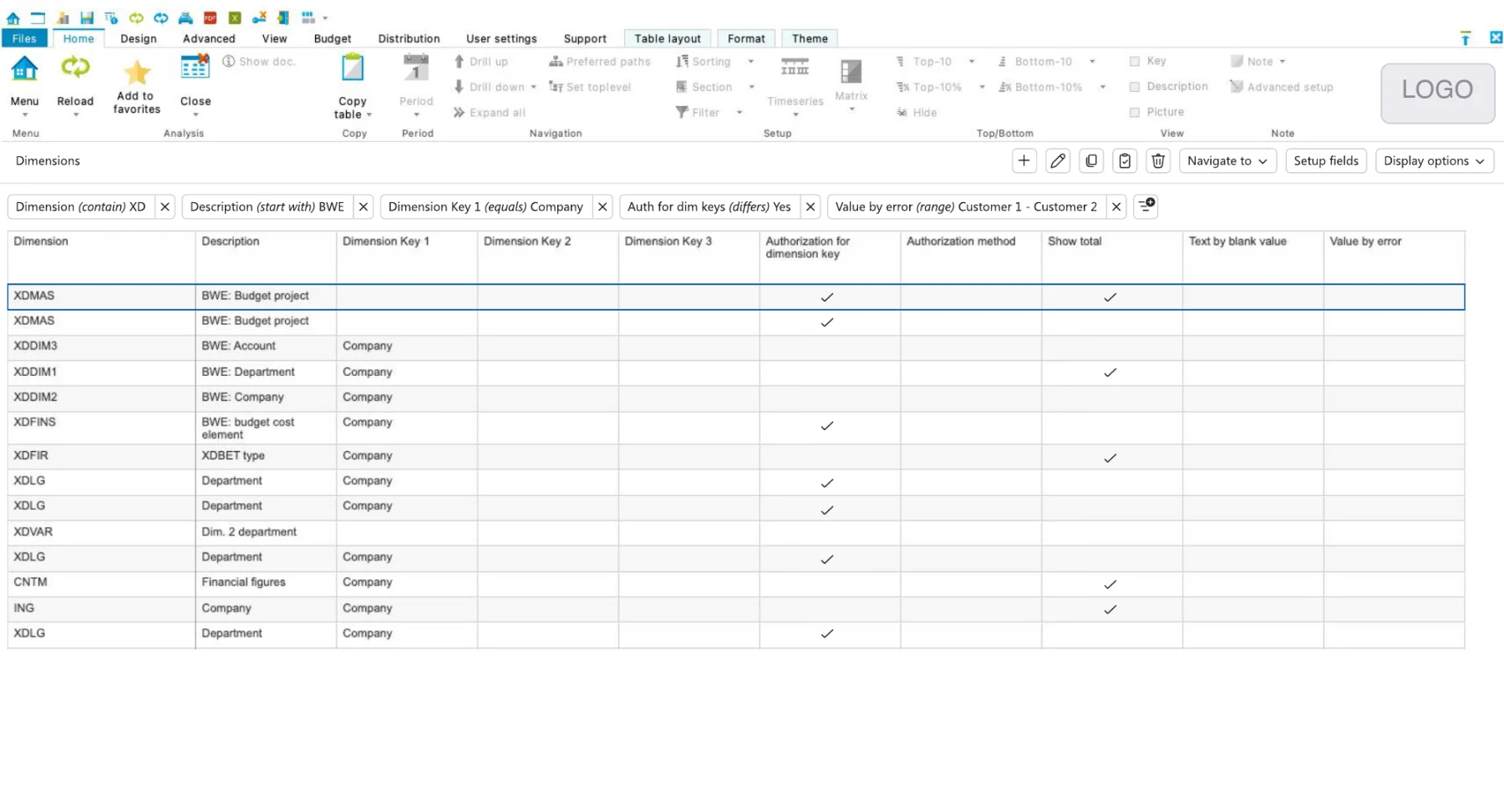
  • Filters as removable chips
  • Toolbar actions and one Navigate to menu
  • An edit panel with sections beside the list
After: Dimensions table with filter chips, a toolbar with Navigate to, and a clean grid
Before: Dimensions table in the Java client with a row of bracketed links to related tables
BeforeAfter
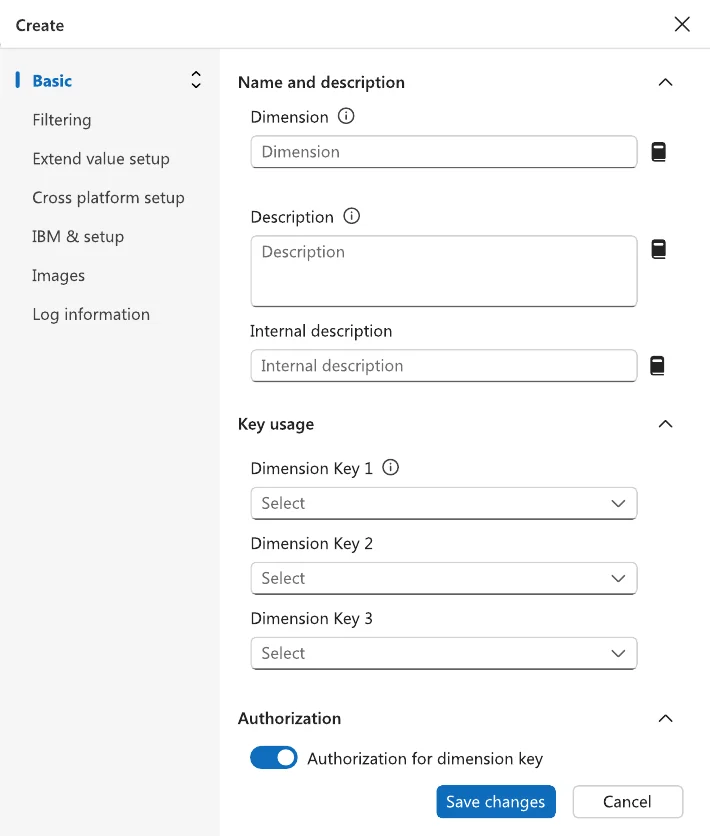
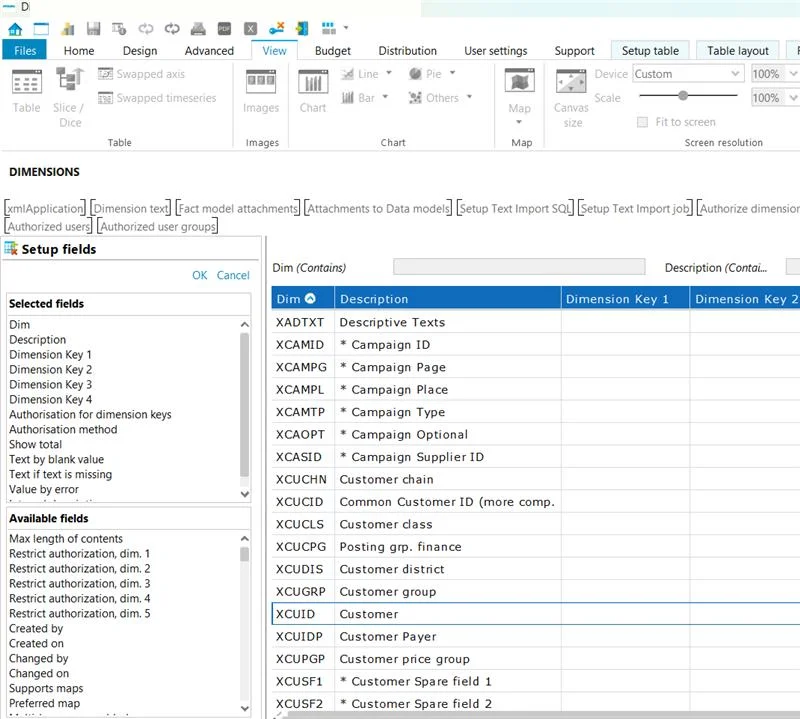
Before · Create dimensionOld create form: OK and Cancel as links at the top, five tabs, fields in a dense table
After · Create dimensionNew create panel: section navigation on the left, labelled fields with help icons, Save changes at the bottom
Before · Setup fieldsOld Setup fields panel beside the table: two stacked scrolling lists, no search, OK and Cancel as links
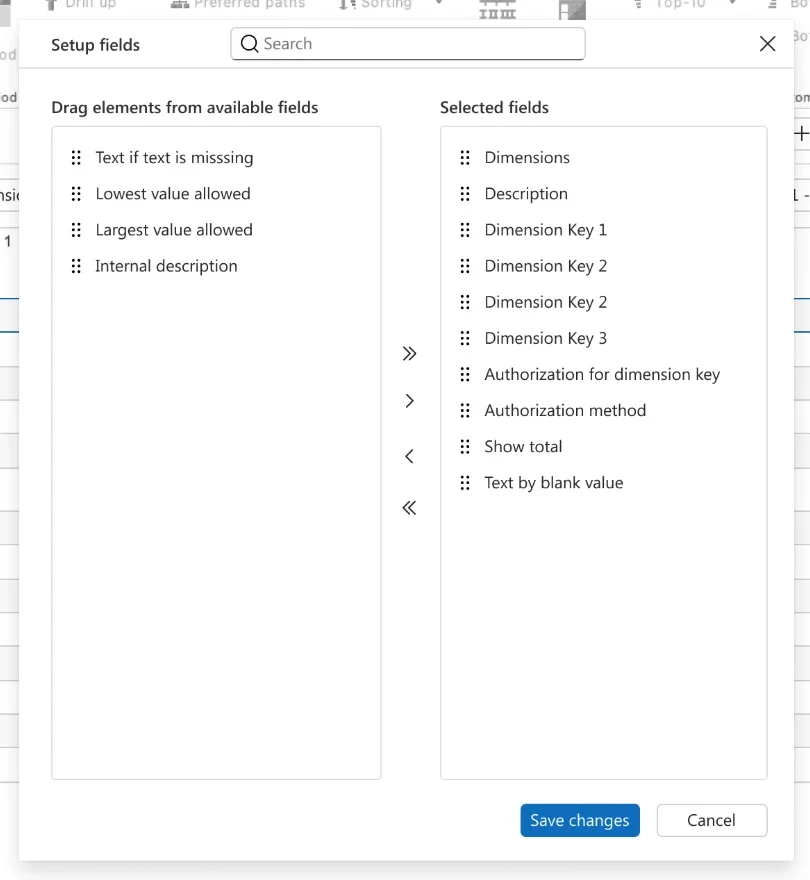
After · Setup fieldsNew Setup fields dialog: search at the top, available and selected fields side by side with drag handles and move buttons, Save changes and Cancel at the bottom
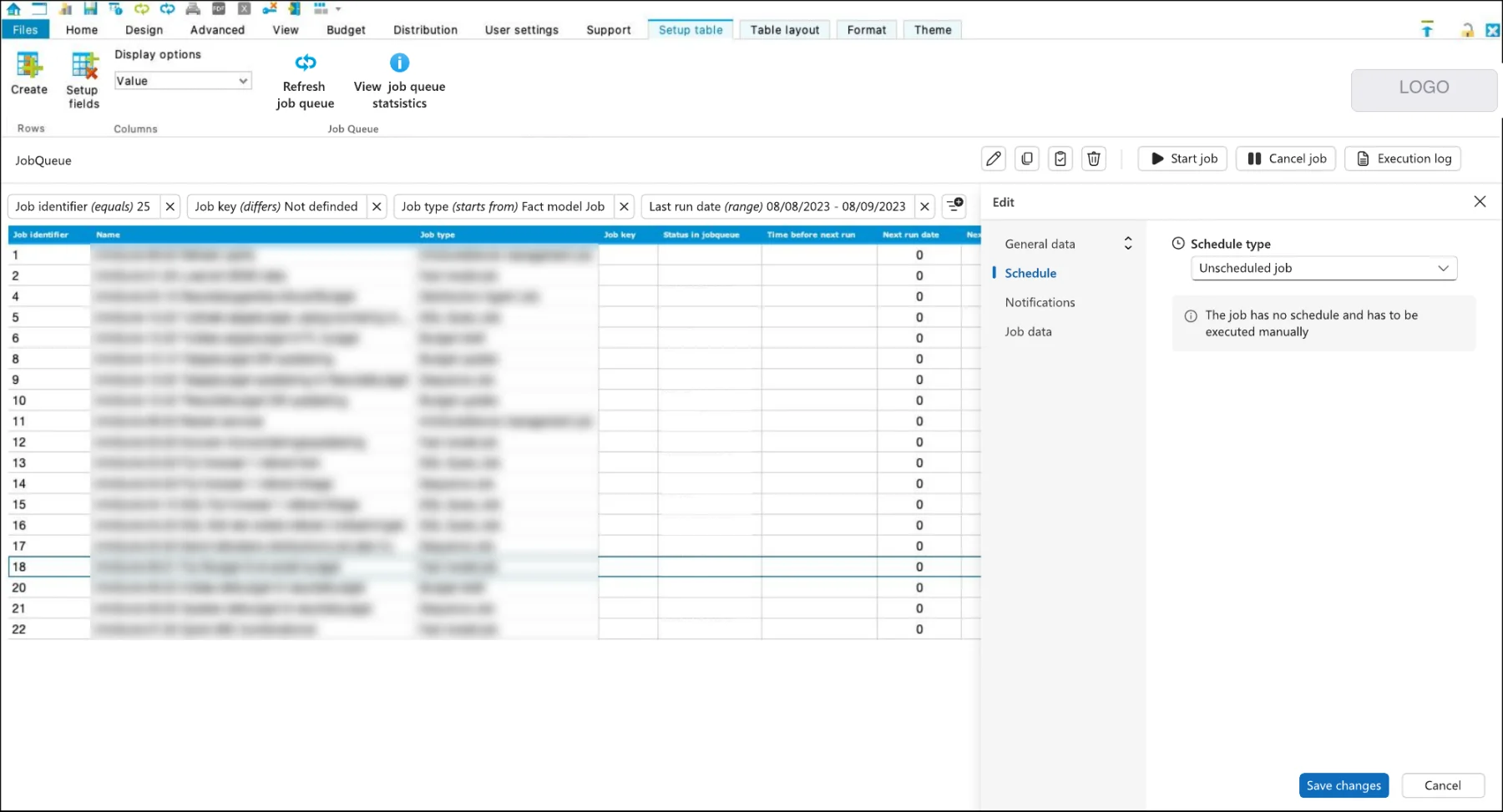
The same pattern in the job queueJob queue with filter chips, Start job, Cancel job and Execution log in the toolbar, and an edit panel

Learn onceDimensions, measures, jobs and distribution work the same way.

Visible filtersEach active filter is a chip with its rule and a remove button.

Edit beside the listSections instead of tabs, and Save changes where the eye ends.

Dark theme, new

Many analysts work in a dark environment all day. The product had no dark theme.

Before
  • No dark theme for the application
  • Only a dark colour scheme for tables
After
  • A full dark theme for the whole application, built on Fluent UI 2
  • Checked contrast and the same colour meanings as the light theme
New dark themeThe web client in the new dark theme: dark grey surfaces, a sidebar, a muted blue header row and red values for negative variances

A whole theme, not a table schemeRibbon, panels, dialogs and grid all switch together.

Readable in both themesContrast checked for text and icons.

Quiet surfacesOnly status and selection use strong colour.

Mobile app, from nothing

Managers want to check a figure on the way to a meeting.

Before
  • No mobile version at all
  • The desktop application opened as it was, with no mobile navigation
After
  • A mobile app designed from scratch
  • Drill-down as a sheet, analyses as cards, period in two taps
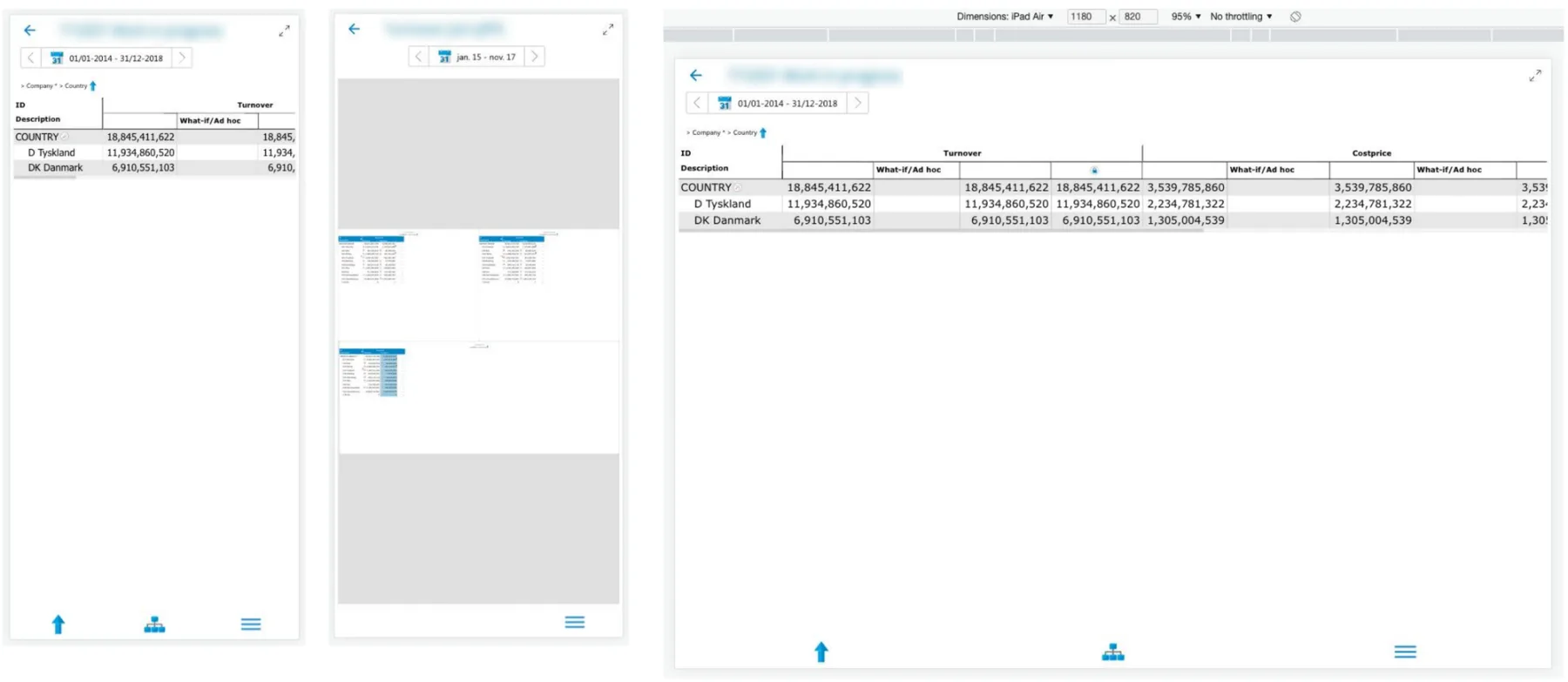
BeforeOld mobile client: a desktop table squeezed onto phone and tablet screens
After
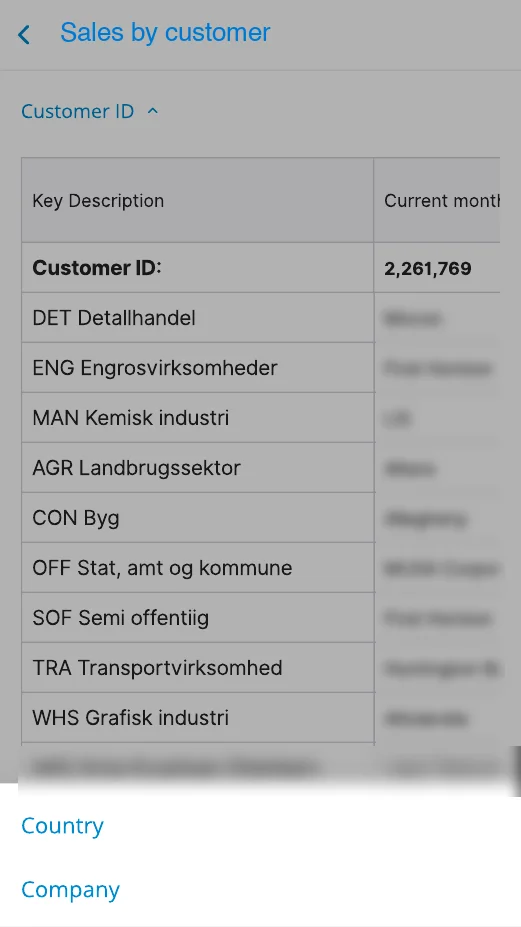
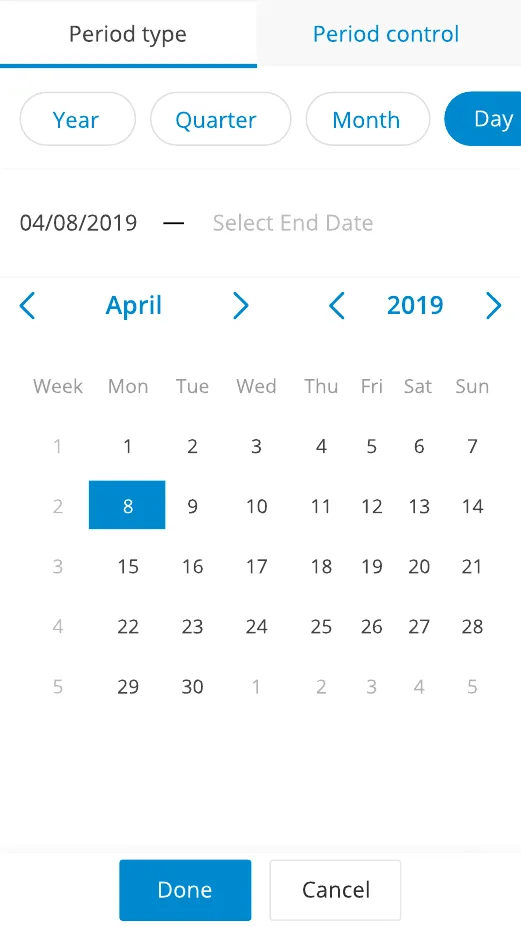
Drill-down sheet listing dimensions Analyses as cards with previews Period picker with year, quarter, month and day

Drill-down as a sheetDimensions open within thumb reach.

Analyses as cardsA preview and a star find the right one.

Period in two tapsType first, then a calendar.

Budget entry, step by step

Around the grid: choose the work area, switch path, write notes.

Before
  • A different kind of window for every step
  • An error shown before the user did anything
After
  • Fluent dialogs for quick choices, a side panel for editing
  • One primary button in every step
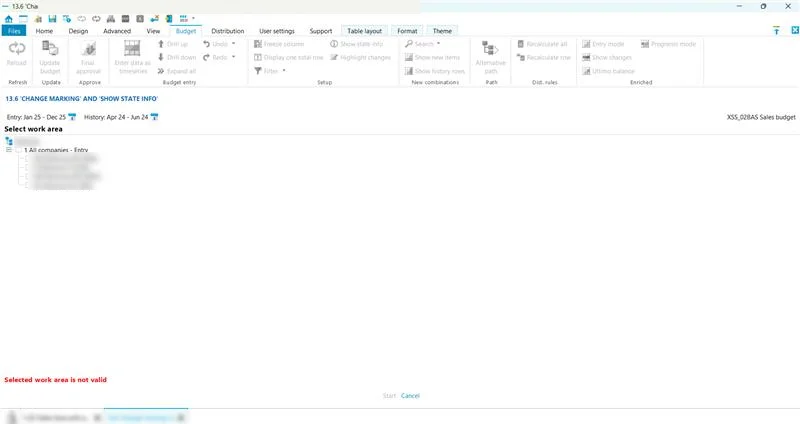
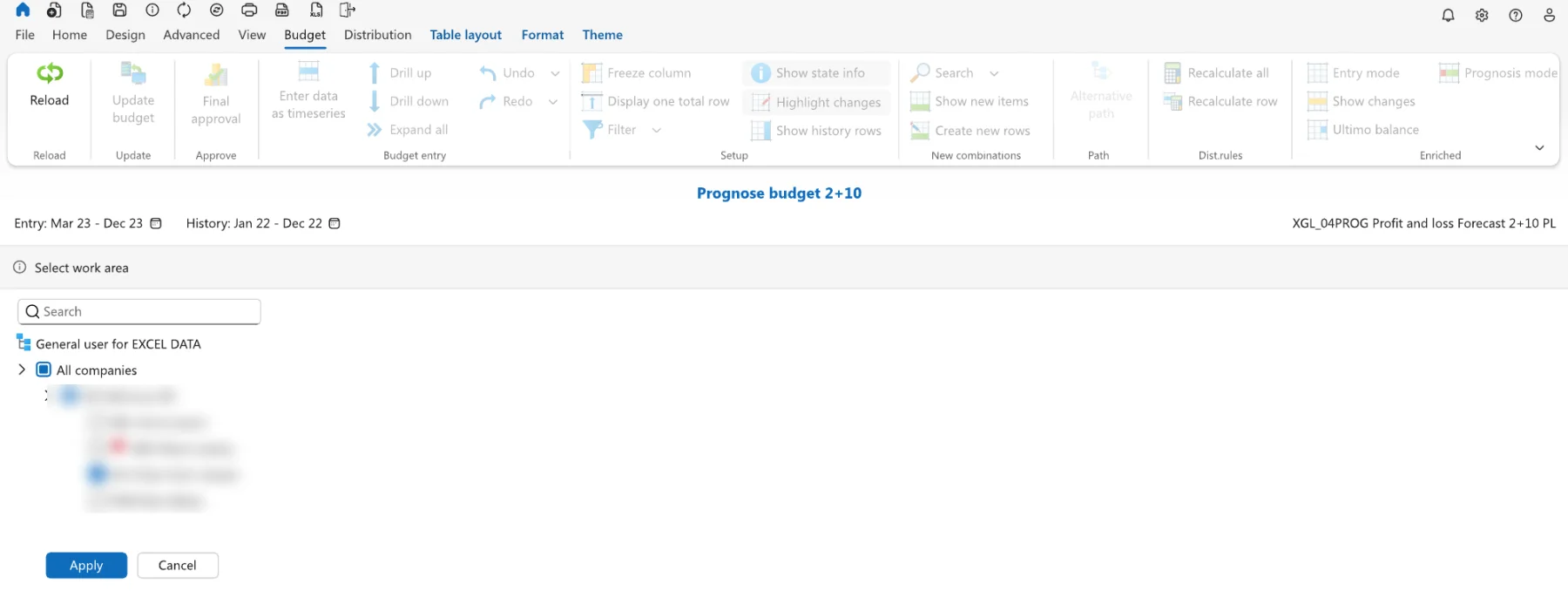
Before · Select work areaOld work area selection: a bare tree, an error shown before the user did anything, and a disabled Start link
After · Select work areaNew work area selection with search, checkboxes with a partial state, and Apply and Cancel buttons
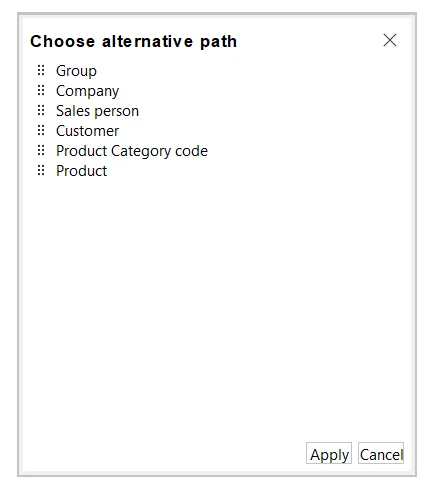
Before · Alternative pathOld dialog: a plain list without a selected state and small buttons in the corner
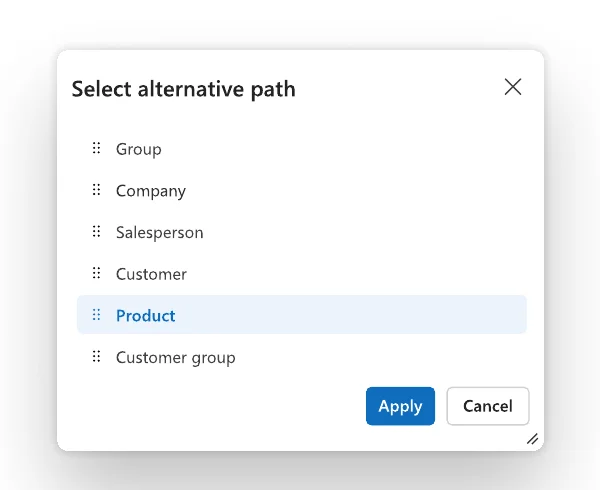
After · Alternative pathNew dialog: drag handles, a highlighted selected path and a primary Apply button
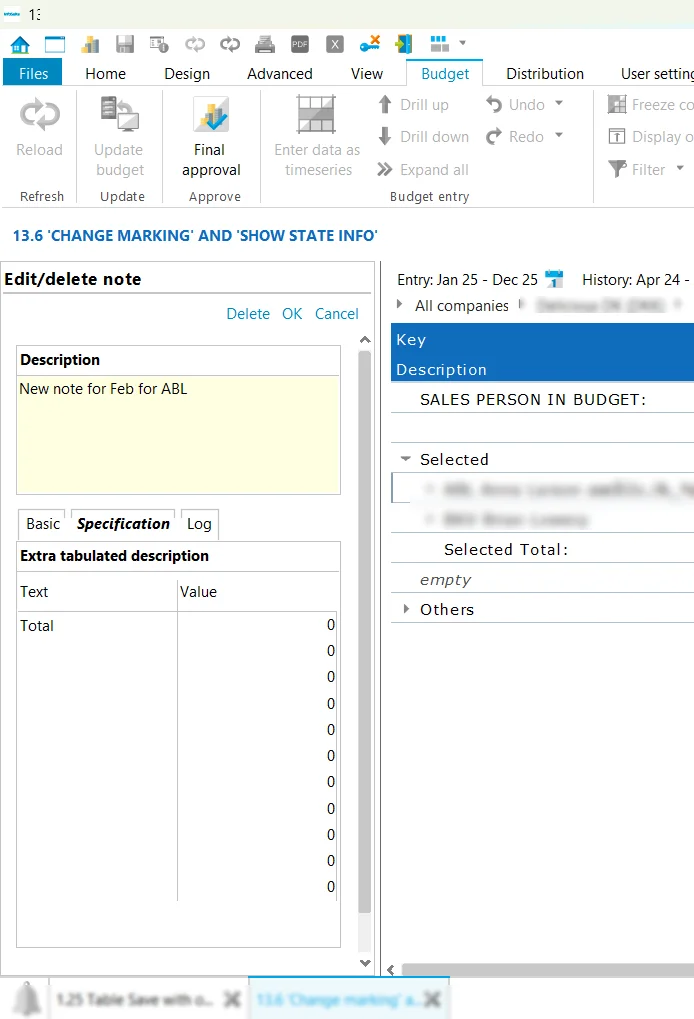
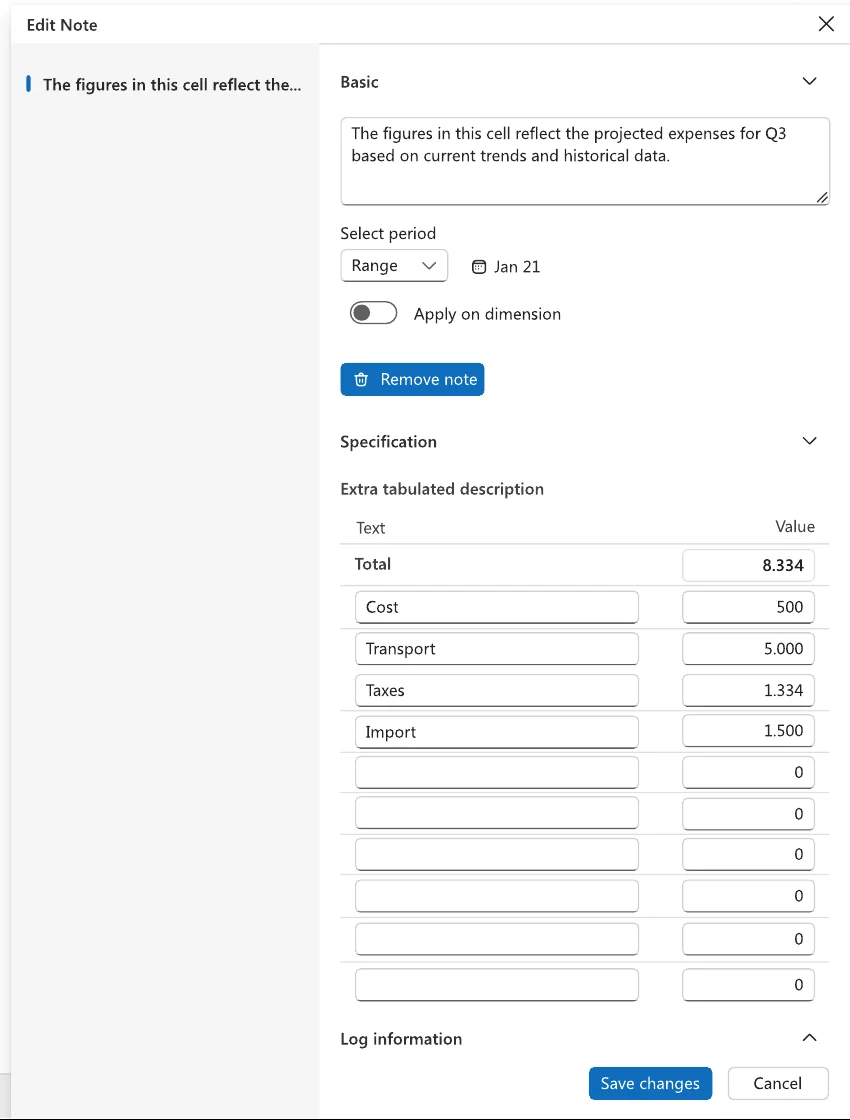
Before · Cell noteOld note panel: Delete, OK and Cancel as small links at the top and tabs below
After · Cell noteNew Edit note panel: notes listed on the left, collapsible Basic, Specification and Log sections, period selection and Save changes at the bottom

No error before the first clickThe work area starts neutral, with search and clear selection.

Visible selectionThe chosen path is highlighted; Apply is the one primary action.

Notes with contextAll notes on a cell in one panel, with period and log in their own sections.

Tabulation definition

Tabulations group values into sets, such as A, B and C customers.

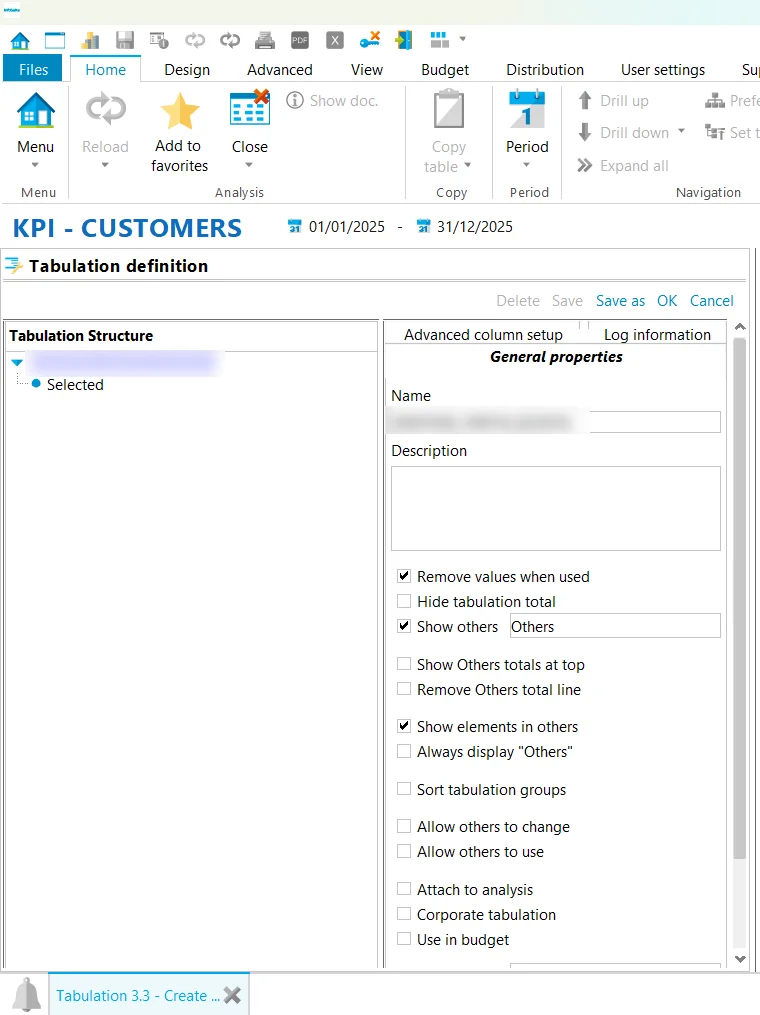
Before
  • A full-screen form with a tree and five text links
  • A long column of checkboxes
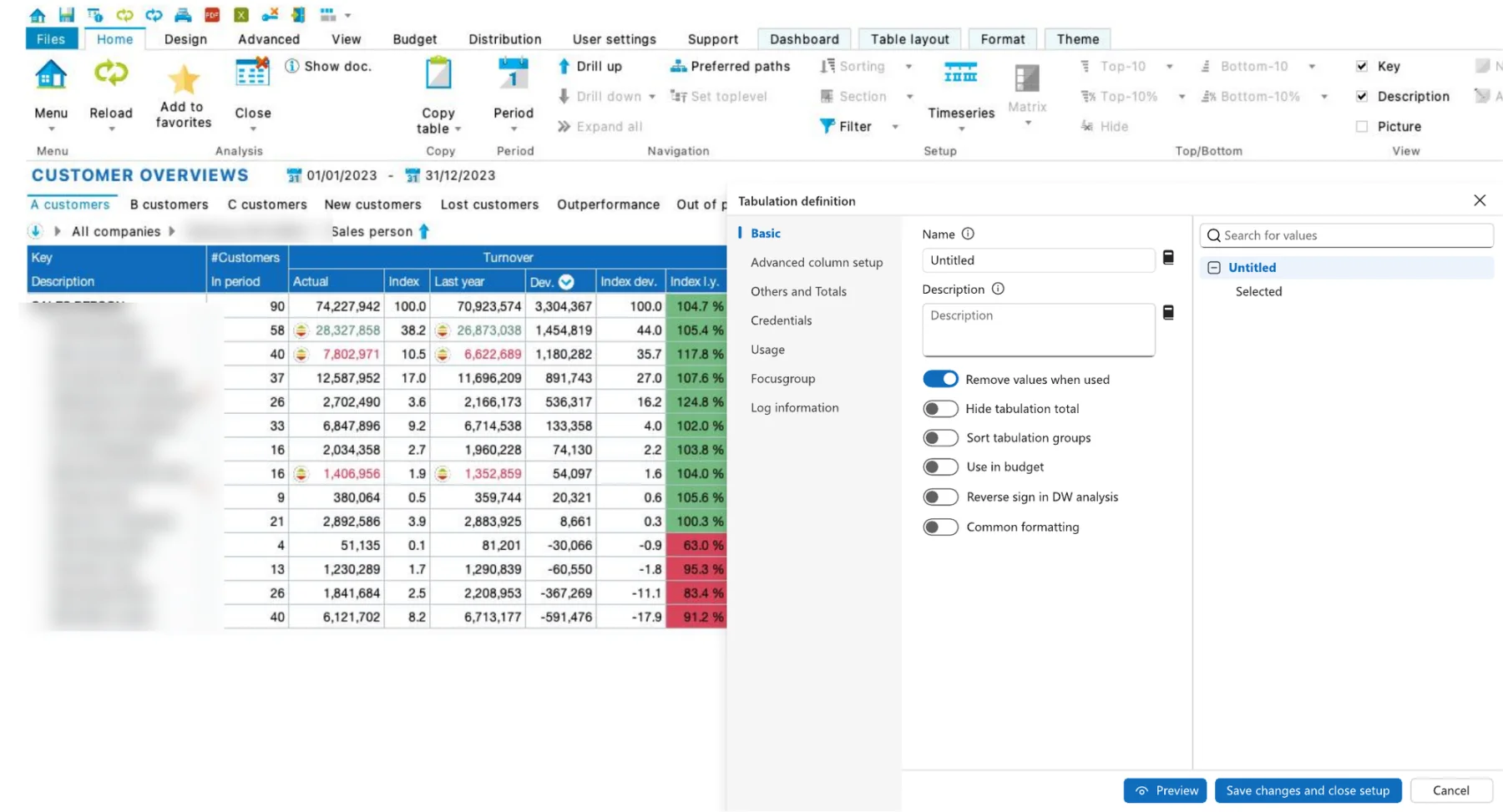
After
  • A side panel next to the live analysis
  • Sections, switches and a Preview before saving
BeforeOld tabulation definition: structure tree, five text links and a long list of checkboxes
AfterNew tabulation definition panel beside the analysis with sections, switches, Preview and Save changes and close setup

Context keptThe analysis stays visible while the tabulation is defined.

Preview before saveSee the grouping, then commit.

Sections, not a wallBasic, columns, others and usage each in its place.

Table formatting ribbon

Settings that change how every table looks.

Before
  • Settings spread over two tabs
  • Styling for every column and element, which almost nobody used
After
  • What people use, in three groups that read like the table
  • Same icons, so nothing had to be relearned
BeforeOld Table layout ribbon with five groups and numbered change markers
AfterNew ribbon with three groups: Header, Table, Total line

5 groups to 3The ribbon reads like the table: header, body, total.

Presets, not numbersCompact, Normal, Spacious instead of two padding fields.

22 controls removedFor data warehouse tables the Format tab is gone.

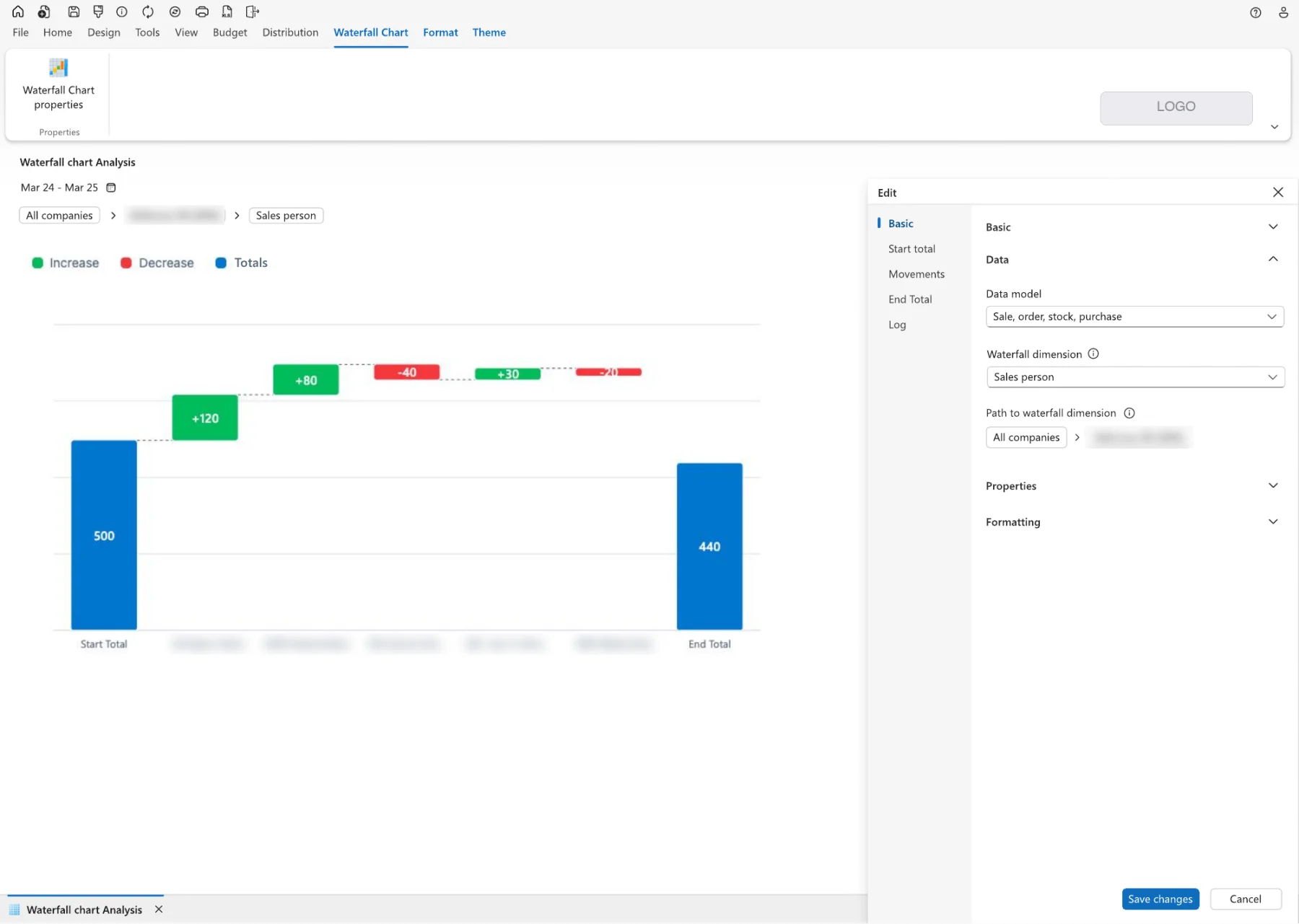
Waterfall chart, a new feature

The product had no waterfall chart. I reviewed the first build before release.

Before
  • Revenue drawn as a decrease
  • Unreadable with many accounts; errors that named no field
After
  • Sign and colour follow business meaning
  • A corrected chart and a stepped edit panel
First build, with my review notesFirst build of the waterfall chart with review annotations
RedesignRedesigned waterfall chart with start total, increases, decreases, end total and a stepped edit panel

Matches the gridMore revenue is an increase.

Readable at any sizeTotals and labels no longer collide.

Guided setupEdit panel steps mirror the chart.

Rules that outlive the designer

The second design system is built on Microsoft Fluent UI 2 and records only what the product adds to it, so developers actually read it. It covers grids, charts, responsive tiers from tablet to wide desktop, both themes, readable contrast and keyboard behaviour.

  • Consistency firstThe same control looks and works the same everywhere.
  • Familiarity over noveltyBehave like Microsoft 365, Excel and Power BI.
  • Data firstDense, readable figures before whitespace.
  • Keyboard-first speedEvery action has a shortcut that does not clash with the browser, and a visible control.
  • Governed numbersEvery change to a plan is visible: locks, approval, unsaved marks.
  • One product across devicesWeb matches desktop; phones get a dedicated app.

Keeping a large icon set healthy

The product got a new set of 1,146 icons, each in a light and a dark variant. With that many, drawing is only half the work; the other half is checking them all: how they look in both themes, whether any are broken, missing or duplicated. I review them in batches, fix or redraw what fails, and ran an audit that found about 530 icon files in the code base that nothing used.

One component, one behaviour

The biggest problem across the product was not one screen but how differently everything worked. Every team and every year had added its own version of the same control.

Before
  • OK and Cancel as links on one screen, buttons on the next
  • Dialogs, side forms and full-screen windows for the same kind of task
  • Tabs in one editor, stacked boxes in another
  • Toggle buttons, checkboxes and dropdowns for the same on/off setting
  • Lists with search, lists without search
After
  • One primary button per area, always in the same place
  • Dialogs only for quick choices, a side panel for editing
  • Sections with the same layout in every editor
  • One control type per kind of setting
  • One picker with search, used for paths, slices and filters

Keyboard shortcuts for the browser

Power users live on the keyboard, but many desktop shortcuts are reserved by the browser in the web client. I reviewed the whole shortcut scheme for desktop, web and touch, moved conflicting shortcuts, proposed new ones where gaps existed, and made the shortcut part of every tooltip.

UI writing

17 of 20 quick-bar tooltips just repeated the button name. I wrote a tooltip style guide and rewrote the texts for 36 status icons in the budget grid.

Before
Finally accepted budget entry
Temporary locked budget entry
After
Final approval on rowThe value on this row is approved and locked; the levels below stay open. The approval must be removed before the value can be changed.
Temporary lock on rowThe value on this row is held while the rows below are changed. Any user can remove the lock.

How I work

Every module starts with a user flow and an annotated layout, then goes to development as a specification: problem, scope, expected behaviour, numbered acceptance criteria covering keyboard, screen readers, touch and both themes. Before a release I test the build myself and report what does not match the design.

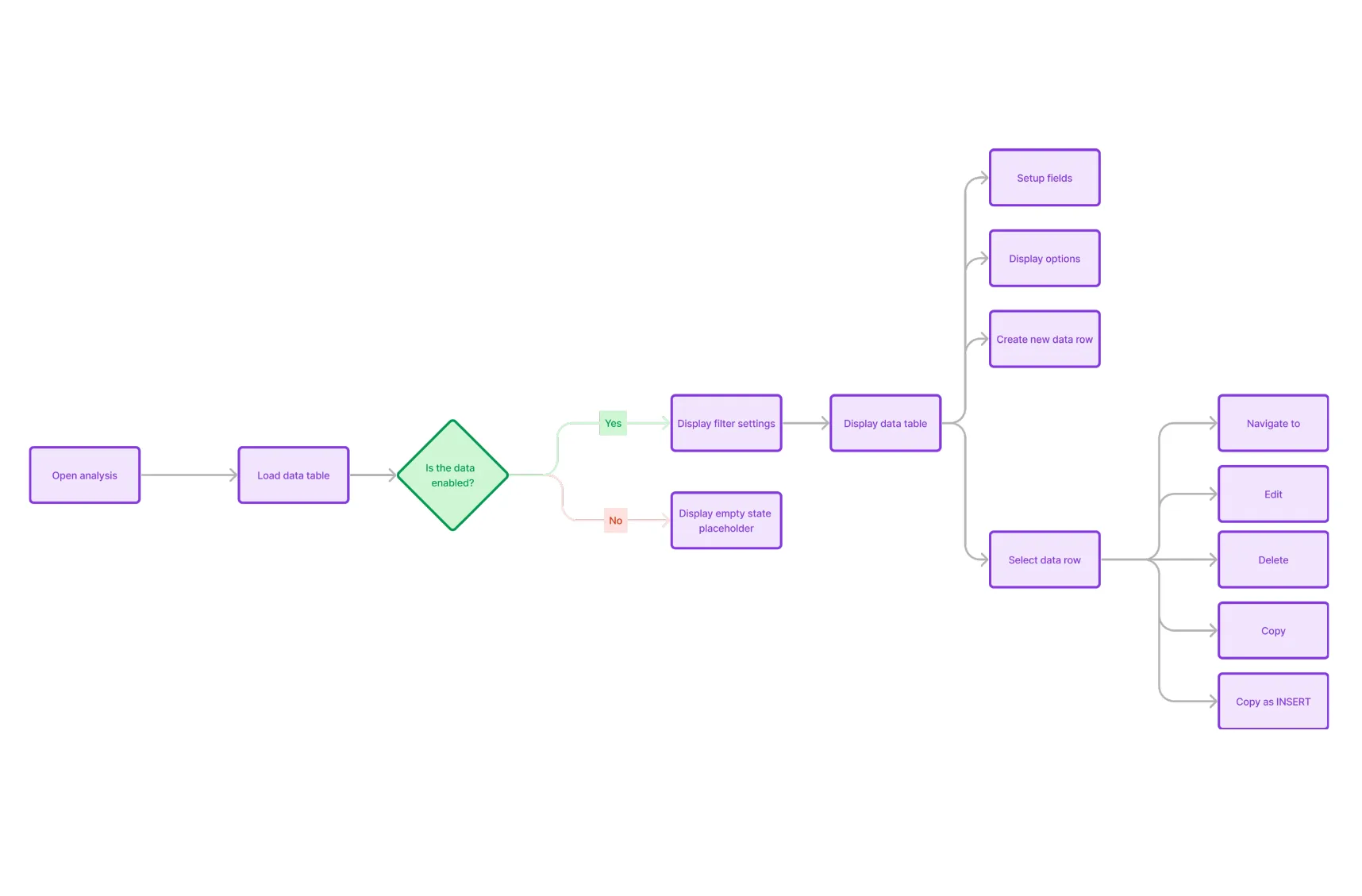
User flowUser flow for a setup table: open, load, empty state or table, then edit, delete, copy or navigate
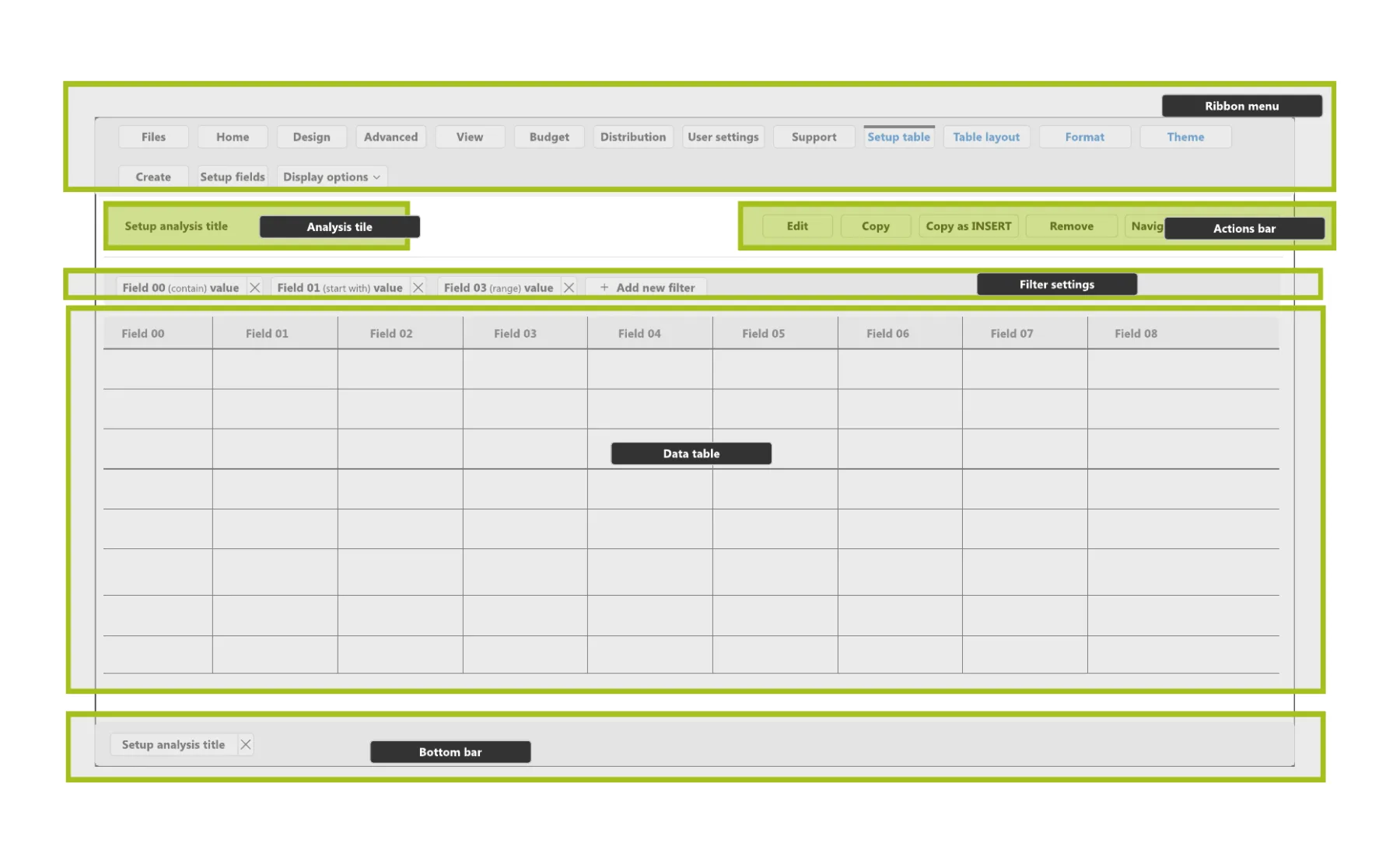
Annotated layoutAnnotated wireframe: ribbon, title and actions bar, filters, data table, bottom bar

AI in my work, since 2026

Since 2026 I work with Claude and ChatGPT every day: turning Figma exports into product documentation and UX reviews, checking UI texts, and building clickable React prototypes from the same design rules, so developers can try the behaviour before they write production code.

Tools

FigmaFluent UI 2ClaudeChatGPTReact prototypesStorybookYouTrackMicrosoft Teams

What changed

The concrete outputs of 8 years of work.

3platforms: desktop, web, mobile
100+screens in one web architecture
1,146new icons, light and dark
2design systems, the second on Fluent UI 2
36status tooltips rewritten to one guide
~530unused icon files found by audit
  • Interactive, Excel-like grids in the browser instead of static tables rendered on the server.
  • One consistent interface instead of three clients that each worked differently.
  • Light and dark themes with readable contrast.
  • A design process the whole company knows, from research to review.
  • Specifications with acceptance criteria instead of screenshots in chat.
  • Usability testing and design QA as regular steps.

My job was to turn many opinions into clear decisions the team could build.

Write it down. A rule in one person's head gets argued every sprint.

Pick the battles. Hold firm where users would be hurt, like a chart with the wrong sign; accept a smaller fix where the cost is mostly visual.

Familiar beats clever. Experts judge a new interface by how little they have to relearn.

Confidentiality: the product, the company, customers and colleagues are not named. Logos are removed, and client names, people's names and internal addresses in screenshots are blurred or replaced. Personas are anonymous role archetypes.

Hire me